Smartsheet data export requires multiple approaches since no single method captures everything: sheets go to Excel or CSV, attachments need workspace backups or the API, and automations plus forms cannot be exported at all.
Key takeaways
Sheet exports are accessed through File menu then Export, offering Microsoft Excel, CSV, PDF, PNG, or Google Sheets formats, with Excel preserving row hierarchy better than CSV.
Formulas export as calculated values rather than formulas themselves, and multi-select dropdowns combine values into single cells, which affects database imports later.
Attachments and comments require either a workspace backup or the Smartsheet API since standard sheet exports do not include them.
Automations, forms, cross-sheet references, cell links and dashboards have no export function and must be documented manually through screenshots or written notes.
The API provides complete data extraction including discussions and cell history with documented rate limits, making it preferable for large-scale exports over fifty sheets.
Export while your plan remains active and you retain admin rights, since an expired plan prevents access and creates gaps in the migration process.
Your real process lives in automation rules, form logic, conditional formatting and folder structure that spreadsheet files cannot reproduce, so data export captures only part of your Smartsheet setup.
TL. DR
You can export almost everything in Smartsheet, but not in one click and not all at once. Sheets come out as Excel, CSV, PDF, PNG or Google Sheets from the File menu. Attachments and comments need a workspace backup or the API.
The short version an admin can act on this week. Export each sheet to Excel for the data, request a workspace backup for the attachments, and use the Smartsheet API if you need comments, cell history or more than a few dozen sheets. Nothing you export will carry your automations, forms, cross sheet references or dashboards, so screenshot those before you cancel.
Key takeaways
Sheet exports live under File, then Export, with options for Microsoft Excel, CSV, PDF, PNG image and Google Sheets.
Smartsheet's help center is clear that exports carry values, not the working parts. Formulas, attachments, comments and cell history do not come along in a normal sheet export.
A workspace backup is the only built in way to get attachments out in bulk, and Smartsheet's help center ties it to the higher plans.
Dashboards export to PDF only. There is no file that rebuilds a dashboard somewhere else.
Automations, forms, cell links and cross sheet references have no export at all. Document them by hand or by screenshot.
The API gives you everything the interface gives you, including discussions and cell history, with a documented rate limit you have to respect.
Export early, while your plan is still active and your admin still has access. An expired plan is a bad time to discover a gap.
Most people start this process the week before a renewal, which is late but survivable. The work itself is not hard. It is just wider than it looks, because Smartsheet stores your real process in places a spreadsheet file cannot hold. This page walks the whole thing, in order, naming the menus as Smartsheet names them.
What can you export from Smartsheet?
Sheets, reports and dashboards all export, in different formats, with very different fidelity. A sheet gives you the most. A dashboard gives you the least.
Here is the honest map. Grid data exports cleanly to Excel or CSV. Visual views export to PDF or an image. Attachments come out through a backup request or the API. Comments and cell history come out through the API only. And a long list of things you probably think of as "our Smartsheet" has no export path at all, because it is configuration rather than data.
That split matters more than the file formats. Your data is the easy part. Your process is the part that lives in automation rules, form logic, conditional formatting, sheet summary fields, cross sheet formulas and the folder structure your team learned to trust. Smartsheet does not hand you a file that reproduces that anywhere else, and no vendor in this category does.
Do the export while your plan is live and your account still has Admin rights on every workspace. Sharing permissions, not plan level, control who can export a given sheet. If the person who owns half your sheets left the company, fix the ownership transfer first, before you start downloading anything.
How do you export a sheet to Excel or CSV?
Open the sheet, then choose File, then Export, then Export to Microsoft Excel or Export to CSV. The file downloads to your browser. That is the whole flow, and it works the same on Pro, Business and Enterprise plans.
Pick Excel unless something forces you to use CSV. Smartsheet's help article on exporting a sheet notes that the Excel export keeps row hierarchy, which is the parent and child indentation your project plans rely on, while CSV flattens everything into plain rows. Excel also carries more of the column formatting. CSV carries text, and only text.
Two things surprise people on the first export. Formulas come out as the values they calculated, not as formulas, so a sheet full of SUMIF and cross sheet lookups becomes a sheet full of numbers. And multi select dropdown cells come out as one cell with the values separated, which is fine for reading and messy for importing into a database later.
What the file actually contains
You get the grid. Column names, row data, row hierarchy in the Excel version, and the sheet name as the file name. You do not get attachments, comments, cell history, proofs, automation rules, conditional formatting rules, the forms attached to the sheet, or the links to other sheets. Smartsheet's own documentation describes the export as the sheet data, and that phrasing is accurate in the narrow sense.
A faster way to grab many sheets
Exporting sheet by sheet is fine for twenty sheets and painful for four hundred. If you are over about fifty, skip ahead to the backup section and then the API section. Clicking through File and Export six hundred times is how a two day job becomes a two week job, and it is also how sheets get missed.
Before you export anything, build an inventory. One row per sheet, with the workspace, the owner, the row count, whether it feeds a report or dashboard, and whether anything else links to it. You will use that list four more times during the migration, and it is the single most useful artifact of the whole process.
When should you use PDF, PNG or Google Sheets instead?
Use PDF when you need a record of how something looked, and PNG when you need the Gantt chart as a picture. Use Google Sheets when the destination is Google and the sheet is small.
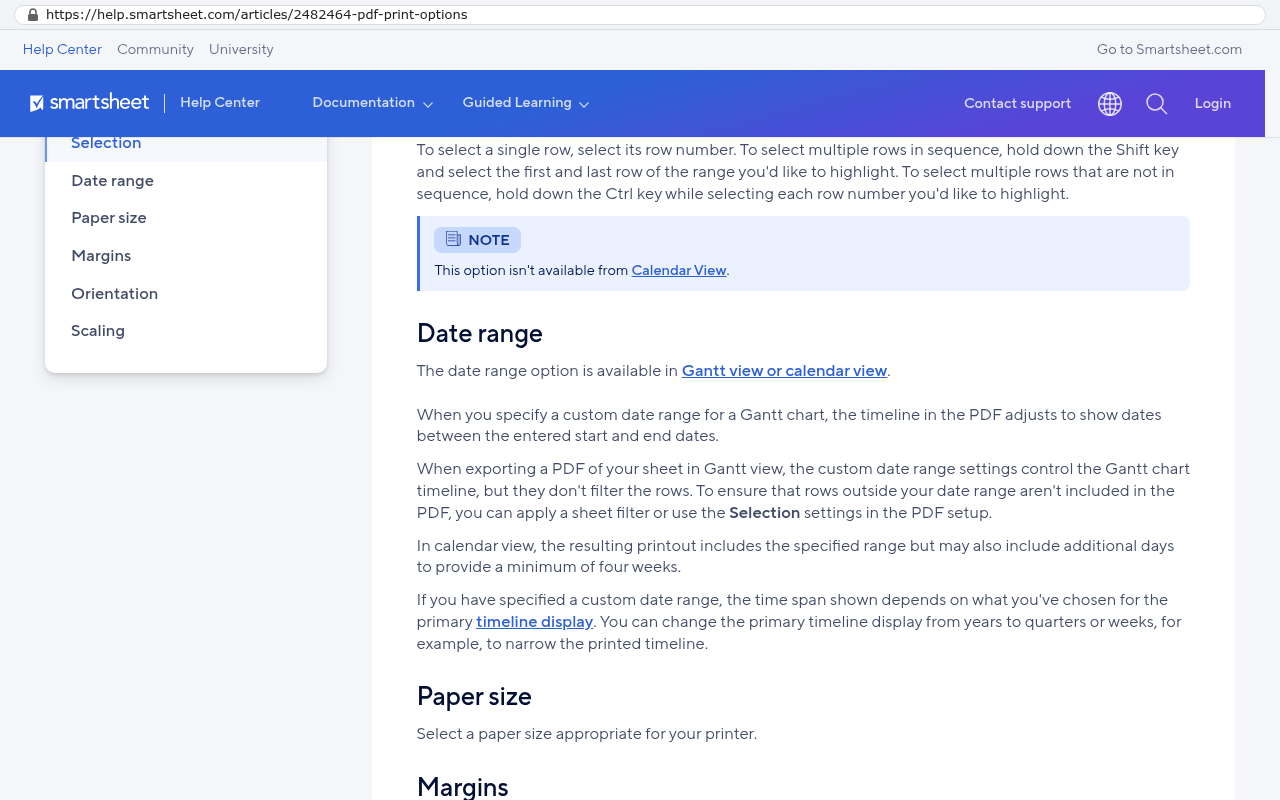
The PDF option sits in the same place, File, then Export, then Export to PDF. Smartsheet's help center documents a settings dialog where you choose paper size, orientation and what part of the sheet to include, including the Gantt view and a date range for it. PDF is the right choice for an archive of signed off project plans, a compliance file, or anything a client approved that you may need to produce in two years. It is the wrong choice for anything you plan to reuse as data.
Smartsheet Help Center shows a PDF print options article documenting paper size orientation date range and Gantt view settings Source: help.smartsheet.com/articles/2482464-pdf-print-options
Export to Image (PNG) gives you the Gantt chart as a picture. That is all it does, and it is genuinely useful for board decks and for documenting the state of a schedule on a given day.
Export to Google Sheets pushes the grid into a new Google Sheets file. You have to authorize Smartsheet against your Google account the first time, and Google's own sheet size limits apply on the receiving end. For a working sheet with a few thousand rows it is clean. For your largest sheet with heavy formatting, download the Excel file instead and upload it yourself, because you will have more control over what breaks.
How do you export a report or a dashboard?
Reports export the same way a sheet does, from File, then Export. Dashboards export to PDF and nothing else.
A Smartsheet report is a live query across sheets, so what you export is the result set as it looked at that moment. Smartsheet's help article on exporting covers reports alongside sheets, and the practical limitation is the one you would guess. The export gives you the rows the report found. It does not give you the report definition, which is the filter logic, the source sheets, the grouping and the summary row configuration that made the report useful in the first place.
So export the report for the data, and separately write down the logic. A screenshot of the report builder panel takes ten seconds and saves an argument later about what "active and overdue" meant.
Dashboards are a documentation exercise
Dashboards in Smartsheet export to PDF through the dashboard's own menu. Smartsheet's help center notes that some widget types do not render well in the PDF, and in practice web content widgets and certain chart widgets are the ones that come out wrong. There is no structured export of a dashboard.
Treat every dashboard as a specification you need to recreate, not as data you need to move. Capture the PDF, capture a full page screenshot, and write one line per widget describing what it shows and which sheet or report feeds it. That list is what a developer or a new platform needs. The PDF alone is not enough.
Attachments come out in a workspace backup or through the API. Comments come out through the API only. Neither one rides along with an Excel export.
This is where most exports fall apart. A five year old Smartsheet account holds signed change orders, site photos, scanned permits, submittals and proof approvals, all attached to rows. Those files are often the legally important part of the record. Smartsheet's help documentation on exporting a sheet is explicit that attachments are not included in the export file, and nothing in the File menu changes that.
You have three options and they are not equal. The workspace backup is the simplest and covers whole workspaces. The API is the complete one and covers everything with file names you control. Downloading attachments by hand from the row panel is the one you do for a single sheet when the alternative is a two day setup.
Comments, conversations and proofs
Comments live in what Smartsheet calls conversations, at the sheet level and the row level. The Smartsheet API documentation describes discussions and comments as their own endpoints, which means a developer can pull them with author and timestamp attached. There is no menu that does this. If your team made decisions in row comments, and most teams did, plan for a script.
Proofs are worse. Proofing stores annotated versions of files with approval status, and there is no export that reassembles that history. Pull the underlying files and accept that the markup layer stays behind, or keep a read only record of it elsewhere.
How do you request a backup of a workspace, and which plans include it?
A workspace Admin requests a backup from the workspace, and Smartsheet emails a download link when the zip file is ready. Smartsheet's help center ties this feature to its higher plans rather than making it universal.
In the current interface you open the workspace, use the workspace actions menu and choose the backup option, then confirm whether to include attachments. Smartsheet's help article on backing up your data describes the result as a zip file containing the sheets in Excel format, with attachments included as an option, delivered by an email link that is only good for a limited window. Large workspaces take hours to prepare, so request them at the end of a day and check in the morning.
Smartsheet's public pricing page lists Pro at $9 per member per month billed yearly and Business at $19 per member per month billed yearly, with Enterprise quoted by sales. The backup request is one of the features that sits above the entry tier, which is worth knowing before you downgrade a plan to save money during a transition. Downgrading first and exporting second is the wrong order.
What a backup does and does not carry
A backup carries sheets and, if you tick the box, attachments. According to Smartsheet's documentation it does not carry reports, dashboards, forms, automation workflows, comments or cell history. It is a data safety net, not a system clone.
One more detail that catches people. The backup is per workspace. Sheets sitting in a user's personal Sheets folder rather than in a workspace are not in any workspace backup. Before you start, run a sheet inventory from the admin side and find the orphans. There are always orphans, and they are usually the finance ones.
Open the zip the day it arrives and spot check it. Pick your three busiest sheets, confirm the row counts match, and open five attachments at random. A backup you never verified is a backup you do not have, and the download link does not sit in your inbox forever.
What does a Smartsheet export leave behind?
Automations, forms, cell links, cross sheet references, conditional formatting, cell history, dashboards, WorkApps and permissions. None of those come out in any file Smartsheet produces.
Work through them one at a time, because each has a different workaround.
Automation workflows. Open the Automation menu on each sheet, screenshot every rule, and write down the trigger, the condition and the action. There is no documented export for workflow definitions.
Forms. A form's layout, logic and confirmation settings live inside Smartsheet. Screenshot the form builder and record every form URL that is printed on a sign, embedded on your website or pasted in an email template, because those links stop working when the sheet goes away.
Cross sheet references and cell links. Formulas export as values, so the connection between sheets is simply gone. Use the links indicator on each sheet to list inbound and outbound links before you export, or you will not know which numbers were live.
Cell history. Smartsheet keeps a history of changes per cell, visible by right clicking a cell and choosing to view history. The API documentation includes a cell history endpoint. No file export includes it.
Conditional formatting and sheet summary fields. The colors that told your team what was urgent are rules, not data. Write the rules down.
Sharing and permissions. Who could see what is part of your controls. Export the user list from Admin Center and record workspace level sharing before you lose access.
None of this is a complaint about Smartsheet specifically. Every platform in this category keeps configuration inside itself. It is just the part that people forget to budget for, and it is the part that determines whether the new system works on day one or on day ninety.
How do you get everything out with the API instead?
The Smartsheet API gives a developer access to sheets, rows, columns, attachments, discussions, comments and cell history. If you have more than fifty sheets or you need comments, this is the route.
In plain English, an API is a way for one piece of software to ask another for data without a human clicking anything. Your developer generates an access token from your Smartsheet account settings, then writes a script that walks every sheet and writes the contents to files or straight into a new database.
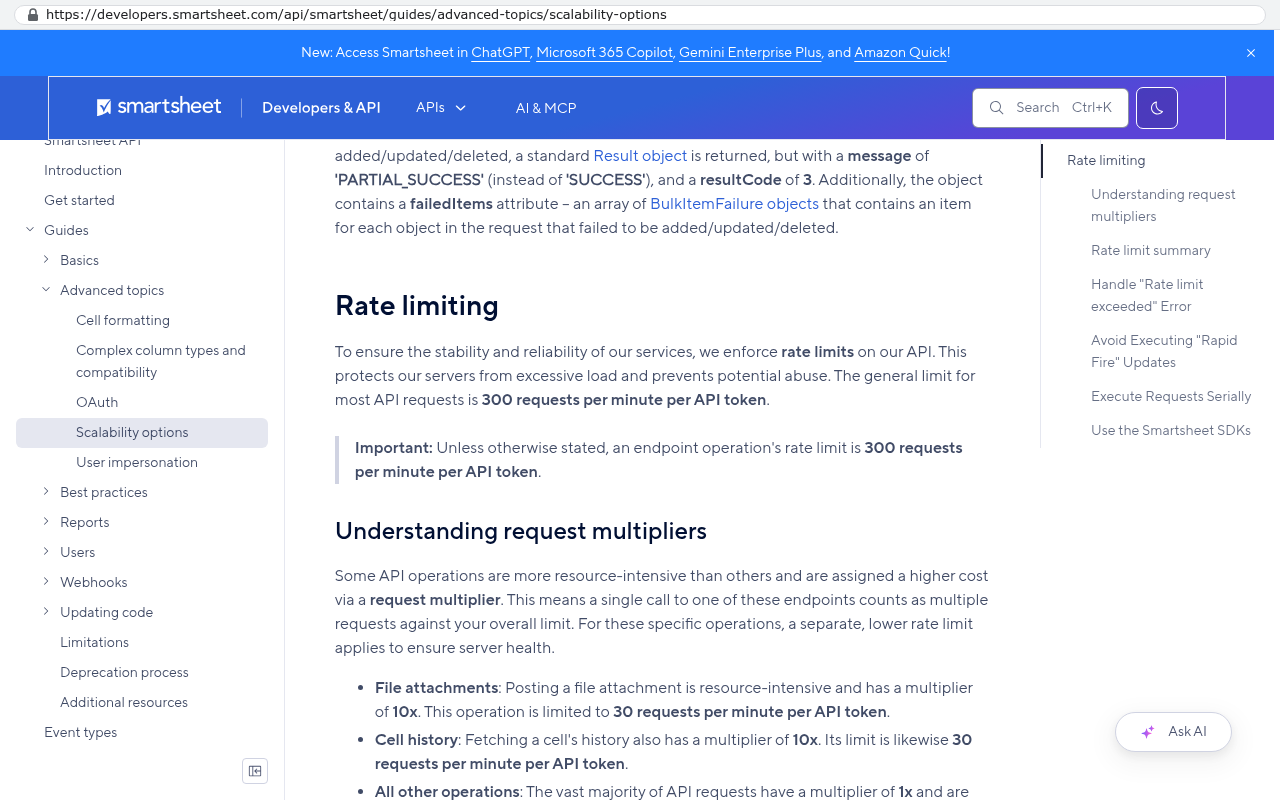
Smartsheet's API documentation states a rate limit of 300 requests per minute per access token, which is generous enough for a migration and strict enough that a naive script will trip it. A good extraction script retries politely when it hits the limit, logs every sheet it finished, and can be restarted without duplicating work. That last part matters more than it sounds, because big extractions fail halfway through at two in the morning.
Smartsheet's API documentation page displays the rate limiting section clearly stating that the general limit for most API requests is 300 requests per minute per API token. Source: developers.smartsheet.com/api/smartsheet/guides/advanced-topics/scalability-options
What a sensible API extraction produces
You want three things out of the run. A structured copy of every sheet with its columns and row hierarchy intact. Every attachment downloaded into a folder named for its sheet and row, since the API returns temporary download URLs that expire. And a separate file per sheet holding comments and cell history with usernames and timestamps.
That output is worth far more than a pile of Excel files. It is machine readable, it preserves the relationships between rows, and it can be loaded into a new system without a human retyping anything. It is also the only version of your Smartsheet history that survives independently of Smartsheet.
Ask for the extraction output in two formats at once. JSON for the new system to load, and plain Excel or CSV for a human to read in ten years. The first one is useful now. The second one is what your auditor or your lawyer will actually open, and it costs almost nothing extra to produce at the same time.
What happens to your data when your Smartsheet plan ends?
Access changes before deletion does, and the exact terms are in your contract rather than in a blog post. Read the agreement you signed and the vendor's current help article on plan expiration together.
The pattern across this whole category is consistent. When a paid plan lapses, editing stops, sharing stops, integrations stop, and view access gets narrower or disappears after a defined window. Your files are not destroyed the same afternoon. But the moment your team cannot edit, your Smartsheet is a museum, and a read only museum does not run your projects.
The practical rule is simple. Get your data out while you are still paying. Do not plan an export for the thirty days after a cancellation date, because that is exactly when permissions, seats and admin rights get squeezed. Export first, verify second, cancel third.
How should you organise the export before a migration?
Decide what is live, what is archive and what is garbage before you move anything. Most Smartsheet accounts are at least a third garbage, and moving garbage costs the same as moving good data.
Run it in this order and the work stays contained.
Inventory every sheet, report, dashboard and form, with its owner and last modified date. The Admin Center sheet list is your starting point.
Sort by last modified. Anything untouched for two years is almost certainly archive. Mark it, do not delete it.
Pick your live set. These are the sheets that run current work, and there are usually far fewer than people expect. Thirty live sheets out of four hundred is a normal ratio.
Document the configuration on the live set only. Automations, forms, links, formatting. Do not spend a week documenting automations on a sheet nobody has opened since 2022.
Export the archive as flat files plus attachments, and put them somewhere permanent that your company owns, like your own cloud storage.
Extract the live set properly, with structure, attachments and comments, because that is what the new system loads.
Splitting live from archive is the single decision that controls the cost of a migration. Clean data moves cheaply. Twelve years of everything, with duplicate contact names and three spellings of every project code, does not. If you only do one thing from this page before you call anyone, do the inventory.
The same discipline applies to any platform you are leaving. If you are also pulling records out of a CRM at the same time, the mechanics differ by vendor and the sequencing does not. Our guide to exporting data from Zoho CRM covers that side in detail, including the module by module order.
What are the limits and caveats of doing this yourself?
A self service export gets you your data. It does not get you your system, and a few specific things will bite you if nobody names them in advance.
Start with fidelity. Formulas become values, which means the number is right today and will never update again. Row hierarchy survives in Excel and dies in CSV. Multi select cells and contact cells come out as text, so a cell that held a real user becomes a name string that your new system has to match back to a person. Dates export in the sheet's display format, which can mean a transatlantic day and month swap if your team uses mixed regional settings.
Then volume. Sheets near Smartsheet's row and cell ceilings produce large files that choke Excel on older machines. The backup zip for a big workspace can run to many gigabytes once attachments are included, and the download link has a shelf life.
Then the unexportable list from earlier. Automations, forms, dashboards and permissions have to be rebuilt by a human somewhere, no matter which destination you choose. Budget for that honestly. It is usually a bigger line item than the data move.
And one more that is easy to miss. If other people outside your company use your Smartsheet, through published sheets, forms on your website or Dynamic View, those links break on the day you stop paying. Every one of those is a small external communication you owe someone. Make a list of them during the inventory, not after the cutover.
If a meaningful part of your Smartsheet value is sharing live sheets with clients who already work inside Smartsheet themselves, that is a real cost of leaving and pretending otherwise wastes your time. It is solvable, usually with a client portal in the new system, but it is a scoped piece of work and not a free side effect of migrating.
Does the export mean you should leave Smartsheet?
No, and exporting your data is good practice whether you stay or go. Plenty of companies should keep Smartsheet and simply hold an annual backup they own.
Smartsheet is genuinely good at a few things. A grid that project managers already understand, fast rollout across a large team, Gantt views that executives accept, and a very large library of integrations you do not have to build. If your work really does look like sheets and schedules, and the per seat math is comfortable, staying is the right call. We have written about when staying on your current platform is the right call, and that advice is sincere.
The case for leaving is usually not about features. It is about three things stacking up. The seat count grew faster than the headcount that needs it. The process got bent to fit the tool, so people keep two systems and a spreadsheet. And the renewal is now a number that would fund something you own instead. Our Smartsheet platform page lays out where the fit is good and where it is not.
What does rebuilding cost compared with renewing?
The honest answer is that it depends on scope, and the arithmetic is usually easier to see than people expect. Compare your five year license commitment against a one time build you own.
Two real examples from our project record, which now covers 467 delivered projects. A Texas contractor facing a $1.3 million five year Smartsheet contract had the system rebuilt in 16 weeks for $375,000, and the license bill went to zero. A company paying $125,000 a year in licensing had its system replaced in six weeks for $85,000, owned outright.
After launch, a custom system costs roughly $100 to $200 a month to run for a smaller company, and $2,000 to $3,000 a month at enterprise scale, paid to the hosting providers directly, with no license and no per user fee. That is the number that changes the shape of the decision, because it does not grow when you hire.
The per seat model is the thing to watch in your own numbers. Smartsheet's pricing page shows the member based structure described earlier, and monday.com's public pricing page applies a three seat minimum to its paid plans, which is a reminder that these models are designed to scale up with headcount rather than with value. A pricing question is answered with a scoping conversation, a fixed scope and a fixed quote, plus an honest answer on every feature request about whether it is worth building.
A pile of Excel files is a safety net, not a destination. Decide where the live work goes before you cut over, and run both systems briefly rather than switching on a Friday.
If the answer is another platform, you are importing and reconfiguring, and the unexportable list from earlier becomes your build list on the new side. If the answer is a system you own, the extraction output feeds a database that holds your rows, your attachments and your comment history together, with the automations rewritten as code rather than as rules inside someone else's product.
Either way, three steps protect you. Keep the Smartsheet plan alive through the first full cycle of real work in the new system, whether that is a month end or a project close. Verify record counts side by side rather than trusting a summary. And keep the raw export archived somewhere your company owns, separate from the new system, forever.
If you are weighing what a client owned replacement looks like for a Smartsheet heavy operation, our Smartsheet to AI page walks through how that transition is scoped. We built on these platforms for years and were a partner of several of them before cancelling those partnerships, which is why the advice here is about your data rather than about anybody's license.
Frequently asked questions
Can I export every sheet in my Smartsheet account at once?
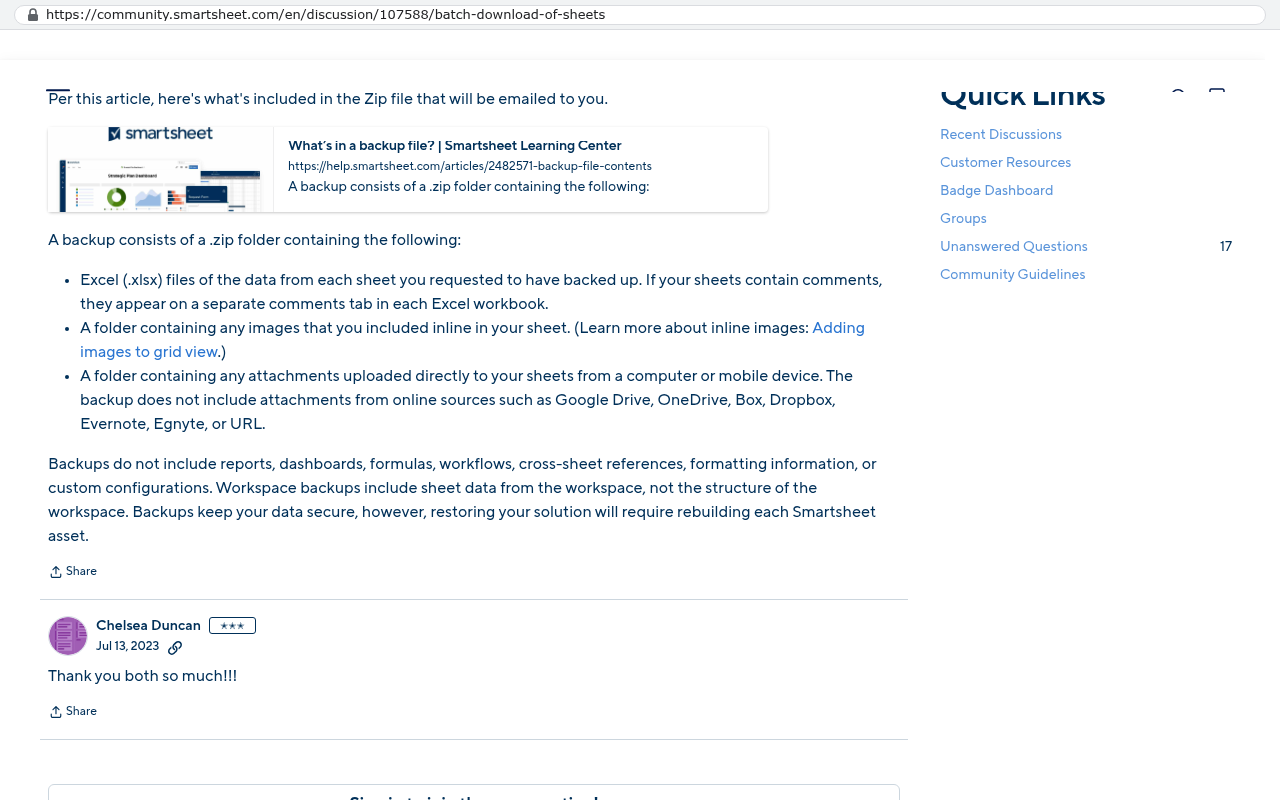
Not from the File menu. The closest built in option is a workspace backup, which Smartsheet's help center describes as a zip of the sheets in a workspace with attachments as an option. Sheets outside a workspace are not included, and you would request each workspace separately. For a full account extraction, the API is the realistic route.
Smartsheet community discussion page showing a help article excerpt explaining that a backup consists of a zip folder containing Excel files of sheets and optional attachments. Source: community.smartsheet.com/en/discussion/107588/batch-download-of-sheets
Do Smartsheet exports include formulas?
No. Smartsheet's documentation on exporting describes the export as the sheet data, and in practice formula cells arrive as the calculated values. That includes cross sheet formulas. If you need to keep the logic, copy the formula text into a documentation sheet before you export, because the exported file will not show it.
Will a backup include my attachments?
Yes, if you choose that option when you request it. Smartsheet's help article on backing up your data describes attachments as an inclusion option on the workspace backup, which makes the zip considerably larger and slower to prepare. Request it late in the day and verify the files the moment the email lands.
How do I keep comments and cell history?
Through the API. Smartsheet's developer documentation includes endpoints for discussions, comments and cell history, each returning the author and timestamp. There is no menu option that exports them. If comments hold decisions your team relies on, treat the extraction script as part of the migration rather than as a nice extra.
What happens to my forms and automations when I leave?
They stop. Form links return an error once the sheet is gone, and automation rules simply cease. Make a list of every live form URL during your inventory, including ones printed on paper or embedded on your website, and rebuild those first in the new system so the people submitting them never see a dead link.
Is it better to export to Excel or to use the API?
Excel is fine for an archive and for small accounts. The API is better when you are rebuilding, because it preserves structure, pulls attachments and comments, and produces output a new system can load without retyping. A reasonable rule is that under fifty sheets you can click through it, and over fifty you should script it.
Should I downgrade my plan to save money while I migrate?
Not before you export. Backup requests and some administrative features sit on the higher plans, so downgrading first can remove the tool you need. Export everything, verify it, then change the plan or cancel.
Read this next
If the export is the first step in leaving, the next question is how the actual move runs. Start with How do you migrate ten years of data out of a SaaS platform?, which covers sequencing, verification and the live versus archive split in far more detail than this page.
Get the export done this week regardless of what you decide next, because owning a copy of your own data is just good hygiene. Then, if the renewal number has you looking at alternatives, book a free strategy session and we will talk through whether a build makes sense for your operation. Sometimes it does not, and staying on Smartsheet with a clean annual backup is the right answer. You will get that answer straight either way.
Questions
Frequently asked questions
Can I export every sheet in my Smartsheet account at once?
No, you cannot export everything at once. You must export sheets individually through File, then Export. For accounts with many sheets (around fifty or more), using a workspace backup or the API is more efficient than clicking through the export menu hundreds of times.
Do Smartsheet exports include formulas?
No, formulas export as the values they calculated, not as formulas themselves. A sheet full of SUMIF and cross sheet lookups becomes a sheet full of numbers. The exported file contains only the calculated results, not the underlying formulas.
What formats can I export a sheet to?
Sheets can be exported to Microsoft Excel, CSV, PDF, PNG image, or Google Sheets. Excel preserves row hierarchy and column formatting, while CSV exports only plain text and flattens the structure. Choose Excel unless something specifically requires CSV.
Will a backup include my attachments?
Yes, a workspace backup is the only built in way to get attachments out in bulk. A standard sheet export does not include attachments, so you must request a workspace backup to retrieve them. Backups are tied to higher tier plans.
How do I keep comments and cell history?
Comments and cell history come out through the API only. They are not included in standard sheet exports or workspace backups. If you need this information, you must use the Smartsheet API to extract it from your account.
What happens to my forms and automations when I leave?
Automations, forms, cross sheet references, and dashboards have no export path at all. You cannot recreate them elsewhere using export files. Document them by hand or take screenshots before you cancel your Smartsheet plan.
When should I export my data from Smartsheet?
Export early, while your plan is still active and your admin still has access to all workspaces. An expired plan is a bad time to discover a gap. Most people start this process the week before renewal, which is late but survivable.
Your team has outgrown the shared workbook, but an ERP is overkill. Here's how to tell the difference, what the real middle options are, and when owning a custom system actually costs less.
If this is your situation
Talk it through on a call
Thirty minutes over video with the person who would run the build. You talk, we ask questions, and you leave with a plain read on whether custom software makes sense for you. If the answer is that your current tool is fine and badly configured, you will hear that.
David Verneuille founded Black Badger after 18 years as a project manager and years implementing Smartsheet, monday.com, Wrike and Zoho for clients. He now builds custom systems that clients own outright, which is why the writing here is specific about where each platform fits and where it stops fitting.
A step by step export guide for monday.com admins, covering the board Excel export, the API, files, updates and activity logs, plus the automations and dashboards no export ever returns.
Smartsheet is cheap at ten people and expensive at two hundred. Here is what a custom replacement includes, how the data moves, what it costs to run, and when renewing is the smarter call.
monday.com is a genuinely good product, and plenty of teams should keep paying for it. Here's the honest math on when it fits, when your team is bending around it, and what a custom system does and doesn't replace.
ClickUp is a powerful project management tool that helps organize tasks, manage teams, and simplify workflows. While it's accessible via a web browser, ClickUp also offers a desktop app for Windows, Mac, and Linux.
Internet connectivity issues can hinder productivity and disrupt workflows. However, ClickUp offers an offline mode that enables you to continue working on your tasks and projects, even when you're disconnected from the...
Want this looked at properly?
An article can only go so far without knowing your systems. Book a strategy call, walk us through what is breaking, and you will get a straight read on whether custom software is the right answer.