Skip to content
BlackBadger

Blog / Project management

How to export your data from monday.com

/ 30 min read

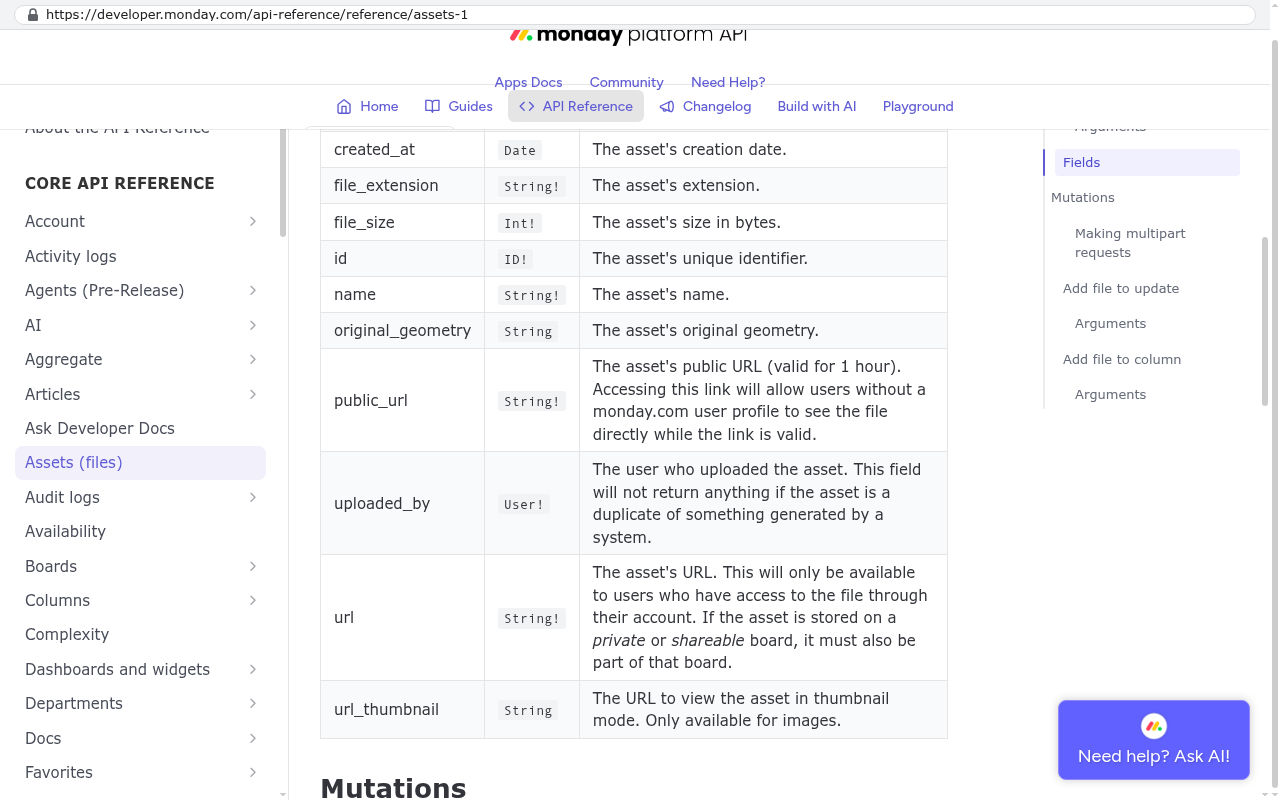
Monday.com API Reference documentation showing Assets object fields including public_url with description that the link is valid for one hour

TL;DR

This comprehensive guide explains how to export your monday.com data across multiple formats and tools, from simple Excel exports to GraphQL API pulls, and what information gets left behind in each method.

Key takeaways

  • The board level Excel export from the three dot menu captures item names, groups, column values, subitems and updates, but you must tick the checkboxes before exporting or those elements will be missing.
  • Files stored in file columns, updates and docs do not download with the Excel export, so you must retrieve attachment URLs through the API and download files separately because public URLs expire after one hour.
  • Mirror columns, connected board columns and formula columns do not export correctly to Excel because the spreadsheet flattens or drops relational data, so you need the GraphQL API to preserve these relationships and pull formula definitions.
  • Item IDs are essential for any migration and only appear in your Excel export if you specifically configure that column, otherwise you must use the API to retrieve them.
  • Automation recipes, integration recipes and dashboards have no export option anywhere, including the API, so you must document them with screenshots and written descriptions while you still have access.
  • Activity log retention varies by plan and data older than your plan's window disappears permanently, making it important to export before canceling your subscription.
  • You should perform a test export of one real board first to verify that item IDs are present, formula columns produce expected values and mirror columns display correctly before committing to a migration timeline.

You export a single monday.com board from the three dot menu at the top right of the board, using the option monday.com's support centre calls "Export board to Excel". That gets your rows and columns. It does not get your files, your automations, your dashboards or the logic inside your formula columns.

Here is the short version an admin can act on this week. A board level Excel export covers item names, groups, column values and (with the checkboxes ticked) subitems and updates. Everything else needs either the API, the Enterprise account level export, or a person with a mouse and a folder. Plan for all three and you will finish. Plan for only the Excel button and you will be missing attachments and automations on the day your subscription ends.

TL. DR

Export each board to Excel from the board's three dot menu, and tick the boxes for subitems and updates before you click export. Download files separately, because the spreadsheet only carries file names and links, not the files themselves. Use monday.com's GraphQL API to pull item IDs, connected board relationships, formula definitions, time tracking sessions and attachment URLs, because the Excel export either flattens or drops all of those. Nothing exports your automation recipes, your integration recipes or your dashboards, so document them with screenshots while you still have access. If your plan does not show an account level export, monday.com's help centre lists that as an Enterprise feature, and support can usually help on request. Do the whole export twice. Once now as a test, once again the week you actually leave.

Key takeaways

  • The board export produces an .xlsx file. It is good at flat data and bad at anything relational.
  • Mirror columns, connect boards columns and formula columns are the three that cause the most damage, because what you see on screen is not what lands in the spreadsheet.
  • Files live in file columns, in updates and in docs. None of them come down in the Excel export.
  • monday.com's developer documentation says an asset's public_url is valid for one hour, so a file download script has to fetch the link and the file in the same run.
  • Automation and integration recipes have no export anywhere, including the API. Screenshot every one.
  • Activity log retention is capped by plan, and once the window has passed the history is gone whether you export or not.
  • Item IDs are the backbone of any migration. If your Excel export has no ID column, you need the API.
  • Export before you cancel, not after. Read only access and a closed account are different things.
Monday.com API Reference documentation showing Assets object fields including public_url with description that the link is valid for one hour
Monday.com developer documentation API Reference page displays the Assets object with the public_url field description stating the link is valid for one hour. Source: developer.monday.com/api-reference/reference/assets-1

What can you actually export from monday.com?

More than people expect, and less than they need. Your monday.com account is really six separate piles of information, and each pile has its own exit.

The first pile is board data. Items, groups, columns, subitems. This is the pile the Excel export handles well. The second is conversation, which monday.com calls updates. Those are the comments, replies and mentions attached to each item. The third is files, which sit in file columns, inside updates, and inside monday docs. The fourth is history, meaning the board activity log and, on Enterprise, the account audit log. The fifth is configuration, which covers dashboards, views, forms, automation recipes, integration recipes, column settings and permissions. The sixth is people, meaning your users, their emails, their roles and who owns what.

Three routes exist to get any of it out. The board level Excel export, documented in monday.com's support centre, handles pile one and part of pile two. The account level export, which monday.com's help centre describes as an admin function, bundles board data across the whole account. The GraphQL API, documented at monday.com's developer site, reaches almost everything in piles one through four and some of pile five. Nothing reaches the automation recipes. That is the gap you have to fill with screenshots and a written description.

Do a test export of one real board before you promise anyone a date. Open the file. Look for item IDs, look at what your formula columns produced, and look at what happened to a mirror column. Ten minutes of checking will change your whole plan, and it is far better to learn this now than during your final week of access.

How do you export a single board to Excel?

Open the board, click the three dot menu at the top right, and choose "Export board to Excel". That is the path monday.com's support centre documents. On some accounts the option sits under an "Import / Export" submenu inside that same three dot menu, so if you do not see it at the top level, look one step down.

A small dialog appears with checkboxes. The two that matter are the one for including updates and the one for including subitems. They are not ticked for you. An admin who clicks straight through gets a clean spreadsheet with no comments and no subitem rows, and often does not notice until weeks later. Tick them.

The file downloads as .xlsx. Groups become a column or a row break depending on your board structure, items become rows, and each board column becomes a spreadsheet column with its display value.

Do this before you click export

Switch to the main table view and clear every filter first. A board view with a filter applied can export only the filtered rows, which is the quietest way to lose data in the entire process. Also check whether anyone has hidden columns in that view. Hidden columns have a habit of being the ones holding client IDs or invoice numbers.

Then check the row count. Count the items on the board, count the rows in the file, and make sure they match. If your board has 4,000 items and the spreadsheet has 4,000 rows plus a header, you are fine. If it has fewer, something filtered it.

What the Excel export does well

Text, numbers, dates, status labels, people names, tags and checkboxes all land fine. Long text columns come across with their content intact. Item names and group names are reliable. For a board that is genuinely a list of things with attributes, the Excel export is honestly all you need, and you can stop reading at this section.

What it does badly

People columns export the person's display name, not their email address. That matters because display names are not unique and emails are. When you load that spreadsheet into anything else, you will be matching "Dave S." against a user list by hand.

Timeline columns squash two dates into one cell. Time tracking columns give you a total, not the individual start and stop sessions. Status columns give you the label text and lose the colour and the index behind it, which is fine until you discover two boards used the same label for different meanings.

And item IDs. Check your file for them. The item ID is the number monday.com uses internally to identify each row, and it is the thread that ties an item to its subitems, its updates, its files and its links to other boards. Without IDs you have a spreadsheet of names, and names are not a key.

How do you export your whole account at once?

There is an account level export in the admin area, and monday.com's help centre documents it as an admin function on the Enterprise plan. If you are an admin, open the admin section and look through the account settings for the data export option. If it is not there, your plan is the reason.

If you cannot see it, two things are still open to you. You can export board by board, which is tedious but complete, and you can contact monday.com support and ask for an account data export. Vendors generally honour that request, particularly where data protection law applies to you. Ask in writing and ask early, because a request made during your final week is a request made under pressure.

Even where the account export exists, treat it as a bulk version of the board export rather than a full account backup. It carries board data. It is not a snapshot of your automations, your dashboards or your permissions model.

Build a board inventory spreadsheet before you export anything. One row per board, with the workspace, the owner, the item count, the column types in use, whether it has subitems, and whether anything mirrors or connects to another board. That inventory is the map for everything that follows, and it is the single most useful hour of work in the whole project.

How do you get your files and attachments out?

Not through Excel. The board export carries file names and, in some column types, a link. The actual documents stay on monday.com's servers.

Your files are in three places. File columns on items and subitems. Attachments inside updates. And monday docs, which are documents in their own right rather than attachments. Each needs handling.

For small volumes, you download by hand. Open the file column, download each file, save it into a folder named after the item ID. Painful but certain. For anything beyond a few hundred files, you want the API. monday.com's developer documentation exposes an assets field that returns each file's name, size, uploaded date and a public_url. That same documentation states the public_url is valid for one hour, which has a direct practical consequence. Your script has to request the URL and download the file in the same run. You cannot harvest ten thousand links on Monday and fetch the files on Tuesday.

Check your storage number before you start, because it tells you how big this job is. monday.com's pricing page publishes file storage by plan in its comparison table, running from 500 MB on the Free plan up to 1,000 GB on Enterprise. If your account is near an Enterprise ceiling, you are moving close to a terabyte, and that is a scripted job with a progress log, not an afternoon of clicking.

Name the files so you can find them later

Downloaded files arrive with their original names, and original names are chaos. Three different clients will all have sent you "invoice.pdf". Save every file into a folder path built from the board ID and item ID, and keep a manifest file listing the original file name, the item it belonged to, the column it sat in and the uploader. That manifest is what lets a new system reattach the files to the right records instead of dumping them into one directory nobody opens again.

How do you export updates, comments and the activity log?

Updates come out two ways. The Excel export has a checkbox for including them, which gives you the text in the spreadsheet. The API gives you more, including the update body as HTML, the plain text version, the author, the timestamp and the replies underneath each one.

If the conversation on an item is part of your records, and for most service businesses it is, use the API. The spreadsheet version flattens threads. You lose who replied to whom, you lose the reaction emoji (no loss), and you lose the attachments inside the update unless you pull those separately.

The activity log is a harder problem, because the limit is not the export, it is retention. monday.com's pricing page comparison lists activity log retention by plan, and the lower tiers are measured in weeks while the higher ones are measured in years. Whatever is outside your window is already gone. No export recovers it.

Within your window, the API exposes an activity_logs field on a board with a date range, which is the reliable way to pull it. Enterprise accounts also have an audit log in the admin section covering account level events like logins and permission changes. If you are in a regulated industry and someone will one day ask who changed a value in 2023, pull the activity logs now and store them as plain files. Do not assume you can come back for them.

Export updates as both plain text and HTML and keep both. The HTML preserves formatting, links and the structure of a long thread. The plain text is what you actually load into a new system and what full text search will index well. Storing both costs nothing and saves a rerun.

What happens to formulas, mirror columns and connected boards?

This is where most monday.com exports quietly break, and it is worth testing on a real board before you trust any plan.

Start with formula columns. A formula column calculates a value from other columns, like a total or a days remaining count. The formula itself, the actual expression you typed, is not in the Excel export at all. What the export does with the calculated result has changed across versions of the product, so open a sample file and look at a formula column with your own eyes. If those cells are empty, you now know you have to recalculate every formula in whatever comes next.

The formula definitions are recoverable through the API. monday.com's developer documentation exposes column settings as a settings_str field, which holds the configuration behind a column as text. That is where formula expressions, status labels with their colours and indexes, and dropdown options live. Pull settings_str for every column on every board. It is a small amount of data and it is the only machine readable record of how your boards were set up.

Connect boards columns

A connect boards column links an item on one board to items on another, like linking a task to a client record. In the Excel export you get the linked item's name as text. You do not get its ID, and you do not get which board it came from.

Names collide. You will have two clients called "Smith" and three projects called "Phase 2". Rebuilding those links from names is guesswork, and guesswork on relationship data is how a migration ends up with work logged against the wrong customer. Pull the linked item IDs through the API instead. The API returns the connected item IDs properly, and IDs do not collide.

Mirror columns

A mirror column shows a value that lives on a different board. It displays a number that is not stored on the board you are looking at. In an export, a mirror is the most misleading column on the sheet, because it looks like data and it is really a window.

The honest way to handle mirrors is to ignore them in the export and go get the source. Find which board the mirror points at, export that board properly, and rebuild the relationship on the other side. If you export the mirror value as a literal and load it somewhere else, you have frozen a number that was designed to change.

Subitems

Subitems are items on a hidden child board, which is why they behave oddly. Tick the subitem box in the export dialog and they come through, usually attached to their parent rows. Through the API, subitems are a separate query, and each subitem carries its own ID and a link back to the parent item ID. For any board where the subitems hold real work, like line items or tasks under a job, use the API and keep the parent and child IDs together.

What about dashboards, automations and integrations?

None of them export. That is the plain answer and it is the part that surprises operations leaders most.

Dashboards are rebuilt, never migrated. Some individual widgets can export their underlying table to Excel, which gives you the numbers behind a chart. The dashboard itself, the arrangement of widgets, the filters, the boards it draws from, exists only in monday.com. Before you leave, open each dashboard, screenshot it, and write a short description of what question it answers and who looks at it. Half your dashboards will turn out to be nobody's. The ones that remain are a short, useful requirements document for whatever you build or buy next.

Automation and integration recipes are worse, because there is no export and no API read. A recipe like "when status changes to Done, notify the account manager and move item to group Complete" lives in the automation centre on each board and nowhere else. The only record you can take with you is the one you make.

Go board by board. Open the automations panel, screenshot the full list, and write each recipe out in a sentence in your inventory spreadsheet. Do the same for integration recipes connecting monday.com to email, Slack, your CRM or your accounting system. Note which third party account each one authenticates as, because that matters when you rebuild the connection somewhere else.

The automations are the part everyone forgets, and they are also the part that holds the process together. A board without its automations is a spreadsheet. Spend a real day documenting every recipe across every active board, including the disabled ones, because a disabled recipe is often a rule somebody is about to turn back on.

What does a monday.com export leave behind?

Plenty, and knowing the list in advance is what separates a controlled move from a scramble. Here is what no export route returns, in rough order of how much it hurts.

  • Automation and integration recipes, as above. Screenshots only.
  • Dashboard layouts, widget configuration and board views. Each view, like a kanban board or a timeline, is configuration that you rebuild.
  • Form definitions. A monday.com form that collects requests from customers is a page you recreate, along with the link that your customers have bookmarked.
  • Permissions. Who could see which board, which columns were locked, which boards were private. The API gives you board owners and subscribers, but the full permission model is something you redescribe.
  • Notification settings and personal preferences for every user.
  • Activity history older than your plan's retention window.
  • Anything in the recycle bin after its deletion window has passed.
  • Item update history, meaning the before and after values of a changed cell, except where it survives in the activity log.
  • Board templates you built, and workspace structure itself.

None of this is monday.com behaving badly. Every platform of this kind keeps its configuration in its own shape, because the configuration is the product. It is worth being blunt about it anyway, since vendors rarely list it on a help page and buyers rarely ask about it before signing.

Want to go deeper? Read our full guide: How do you migrate ten years of data out of a SaaS platform?

How do you get everything out with the API instead?

monday.com's API is a GraphQL API, which means you send one query describing exactly the fields you want and get back one structured response. It is documented publicly at monday.com's developer site and it is genuinely good. Most of the gaps in the Excel export close here.

You need an API token, generated from your profile in the admin or developer area, and a tool to send requests. A developer will do this in an afternoon of scripting. A capable operations person can do a single board with a free API client. There is no option in the product that says "export everything properly", so somebody has to write the queries.

What a good API pull collects, per board, is this list.

  • The board itself, with its ID, name, workspace, description, owners and subscribers.
  • Every column, with its ID, title, type and settings_str, which holds formula expressions, status labels and dropdown options.
  • Every group, with its ID and title.
  • Every item, with its ID, name, group, creation date, creator and the value of each column in both display form and raw form.
  • Every subitem, with its own ID and its parent item ID.
  • Every update and reply, with author, timestamp, HTML body and text body.
  • Every asset, with its name, size, uploader and public_url, downloaded in the same run.
  • Activity logs for the board, within your plan's retention window.

Pull both the display value and the raw value for each column. monday.com returns column values with a text representation and a structured JSON value. The text is readable. The JSON is what carries the pieces, like the two separate dates inside a timeline, the list of linked item IDs inside a connect boards column, or the individual sessions inside a time tracking column. Store both and you can always go back to the file rather than back to the platform.

Pagination is not optional

monday.com's developer documentation describes an items_page structure that returns a maximum of 500 items per page along with a cursor for the next page. Your script has to loop on that cursor until it comes back empty. If you write a query without pagination against a board with 6,000 items, you will get 500 and a false sense of completion.

Count everything. Items per board, updates per item, files per board. Write the counts to a log, compare them to what the UI shows, and reconcile before you call the export done.

What are monday.com's API rate limits and how long will the pull take?

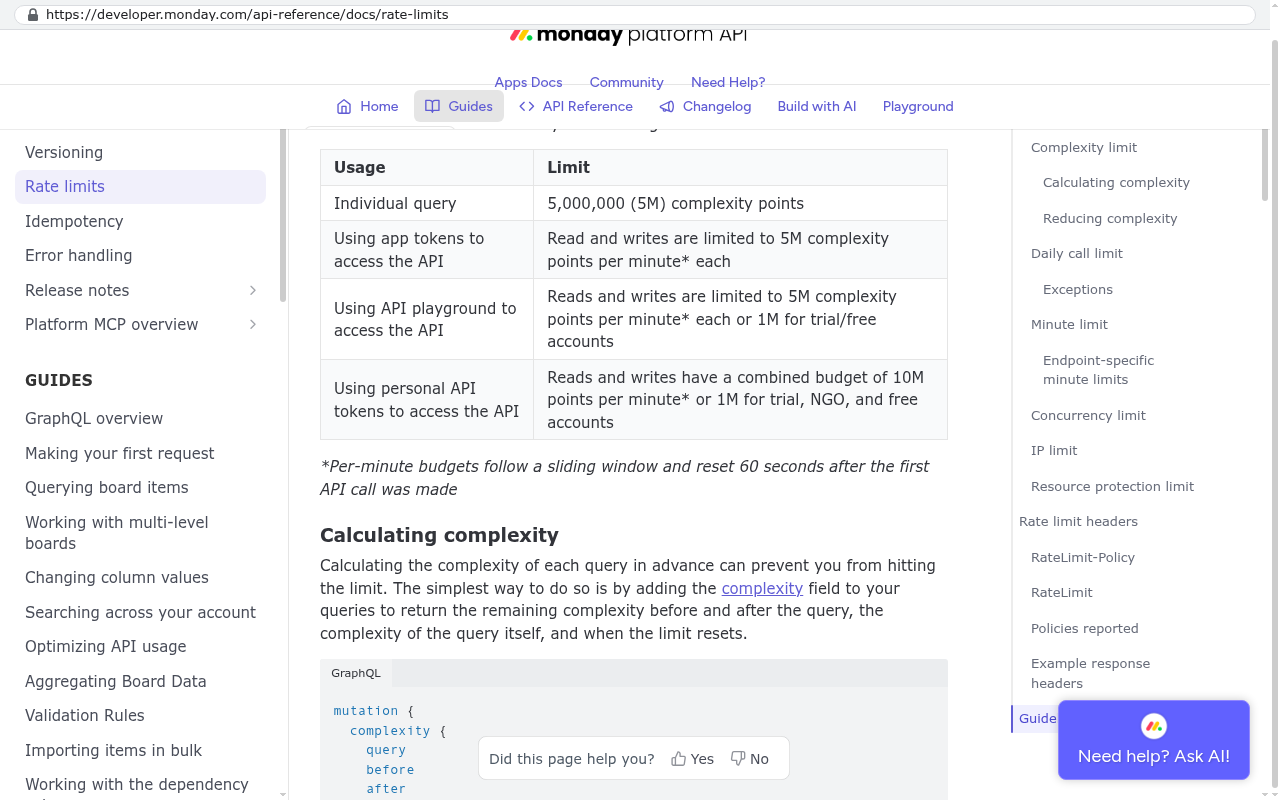
monday.com rate limits the API by query complexity rather than by a simple request count, and the per minute budget depends on your plan. The developer documentation publishes the current numbers and the formula for how complexity is calculated, and the response headers tell you how much budget you have left. Read that page the day you start, because the numbers do change.

monday.com platform API documentation page displays rate limits table showing usage categories and their corresponding complexity point limits per minute for different account types and access methods
monday.com developer API reference shows rate limits documentation with a table listing complexity point budgets per minute for individual queries and different access methods including app tokens and personal tokens. Source: developer.monday.com/api-reference/docs/rate-limits

What this means in practice is simple. A query that asks for items, their columns, their updates and their replies all at once is expensive, and asking for it across a big board will trip the limit. Split the work. Pull items in one pass, updates in a second, assets in a third. Add a retry with a pause when the API returns a rate limit error, which it does cleanly with a message telling you to wait.

For timing, think in hours rather than minutes for a mid sized account, and spread file downloads over a day or two if you are moving hundreds of gigabytes. The slow part is almost never the API. It is downloading the files and then checking that the download matched the manifest.

Run the entire export twice. Once as a dry run while your subscription has months left, so you discover the mirror columns and the missing IDs with time to fix them. Once for real in your last fortnight of access, so the data you keep is current. The second run is fast because the script already exists.

What happens to your data after you cancel monday.com?

Access ends, and then after a retention window the data is deleted. monday.com's help centre covers account cancellation and deletion and gives the retention period that applies. Read it on their site rather than taking any blog's word for it, including this one, because these windows get updated.

The practical rule is to never let your export depend on access you no longer control. Downgrading a plan can hide boards above your new item or seat limits. Removing seats removes people, and a removed user's updates still show but their account is gone. Cancelling at renewal usually means a hard stop on the renewal date, not a gentle read only period.

So finish the export while the subscription is paid, active and on its current plan. Then keep the exported files somewhere you own, with a copy offsite, and verify you can open them. An export sitting in a folder nobody has tested is not a backup.

How should you organise the export before a migration?

Treat the export as the first half of a data project, not as a file download. The order below works, and it is the order we would follow on any platform, not just this one.

  1. Build the board inventory. Every board, its owner, its item count, its column types, its connections to other boards.
  2. Mark the dead boards. Most accounts have a large number of boards nobody has opened in a year. Archive them to a single Excel export and stop thinking about them.
  3. Decide what is a record and what is noise. A client, a project, an invoice and a work order are records. A sprint board for a project that shipped in 2022 is noise with a nice colour scheme.
  4. Export the live boards properly, with IDs, through the API.
  5. Download files with a manifest tying each one to an item ID.
  6. Pull updates and activity logs for the boards where conversation or history is part of the record.
  7. Screenshot and describe every automation, integration, dashboard and form.
  8. Reconcile counts against the UI and write the comparison down.

The second step is the one that saves the most money. Nobody needs to migrate everything. A board that has not been touched since 2021 can live in a read only archive file forever, and the time you would have spent mapping it is better spent on the three boards the business actually runs on.

If you are also leaving a CRM at the same time, the shape of the work is similar but the details are not. Our guide to exporting your data from Zoho CRM covers that side, including the module by module export and the pieces Zoho leaves behind.

Should you export at all, or just keep paying?

Sometimes you should just keep paying, and we will say that plainly. If monday.com fits how your team works, if the seat count is stable, and if the renewal is a number you do not mind, exporting your data to escape is a project with no return. Export anyway as a backup. Then stay.

monday.com is genuinely strong at a few things. Boards are easy for non technical staff to pick up. The automation builder is readable by a normal human, which is rare. Dashboards look good enough that executives actually open them. For a team of fifteen running projects with light reporting, it is a sensible purchase and a custom build would be a waste of money.

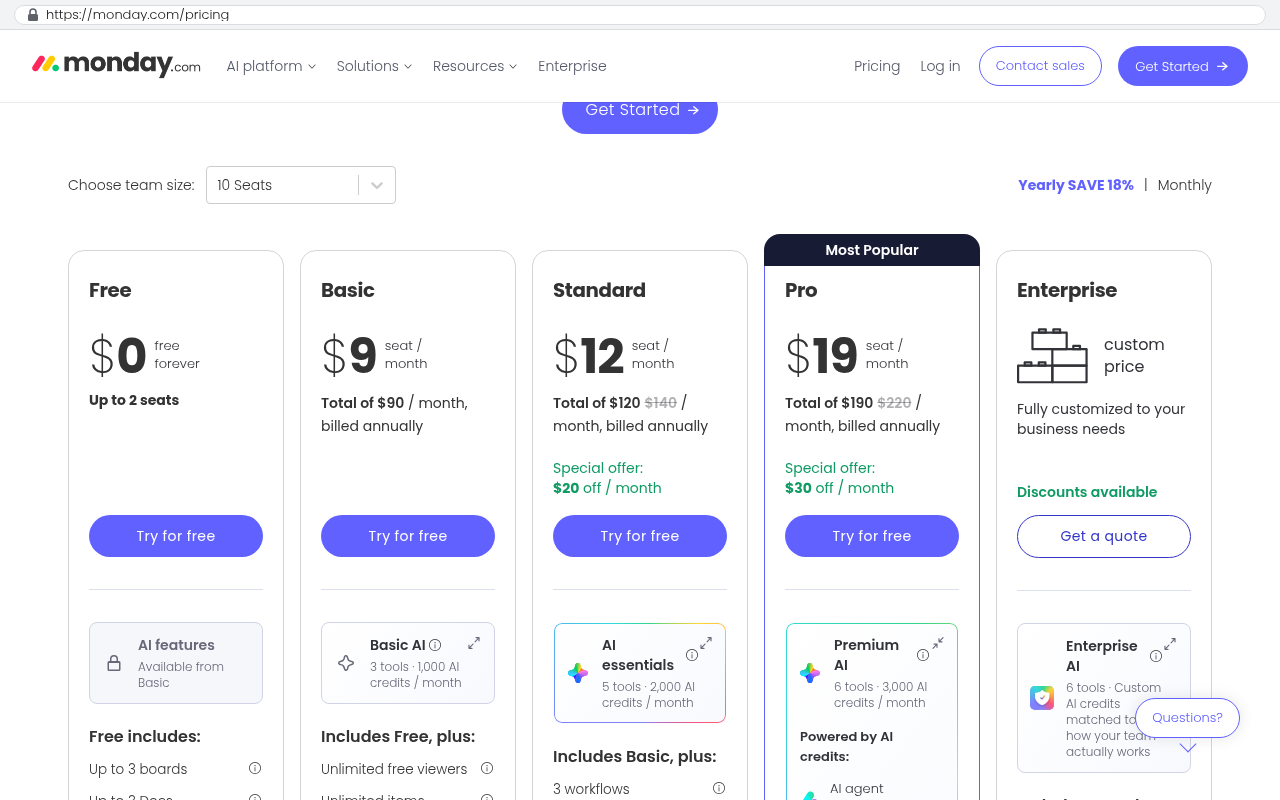
The arithmetic turns somewhere else. It turns when the seat count climbs, when monday.com's pricing page pushes you to Pro or Enterprise for one feature you need, and when the work you actually do stops fitting a board. monday.com's pricing page sells seats in blocks, starting at a three seat minimum with a two seat cap on the Free plan, and the per seat price steps up at every tier. Multiply your seat count by the per seat price on that page, by twelve, then by the length of the contract you are being asked to sign. That is the number to compare against.

monday.com pricing page showing five pricing tiers from Free to Enterprise with per-seat pricing that increases by tier, plus a team size selector dropdown
monday.com pricing page displays the Free plan with up to 2 seats, Basic plan at 9 dollars per seat per month, Standard at 12 dollars per seat per month, Pro at 19 dollars per seat per month, and a team size selector showing 10 seats. Source: monday.com/pricing

What a custom replacement costs is a function of what you ask it to do, so the honest answer is a scoping conversation, a fixed scope and a fixed quote, with four straight answers to every feature request. What is predictable is the run cost. After launch the system costs roughly $100 to $200 a month to run for a smaller company, and $2,000 to $3,000 a month at enterprise scale, paid to the hosting providers directly, with no license and no per user fee. Adding your twentieth user costs nothing. Adding your two hundredth costs nothing.

Two real numbers from the record. A Texas contractor facing a $1.3 million five year Smartsheet contract had the system rebuilt in 16 weeks for $375,000, and the license bill went to zero. A company paying $125,000 a year in licensing had it replaced in six weeks for $85,000, owned outright. Across 467 delivered projects, the pattern repeats. The build is a one time cost and the subscription is forever.

If you want the fuller comparison on monday.com specifically, our monday.com platform page covers where it fits and where it does not, and moving from monday.com to a custom system covers what the replacement actually looks like.

What are the limits of this advice?

A few caveats, because an export guide that pretends everything is simple will cost you a weekend.

Menu names move. monday.com ships interface changes regularly, and the exact wording of a menu item can differ between accounts on different plans. The route is stable even when the label shifts, so if "Export board to Excel" is not where these steps place it, check the Import / Export submenu and then check monday.com's support centre for the current screenshot.

Plan differences are real and they bite late. The account level export, the audit log, longer activity log retention and higher API budgets all sit on higher tiers. If you downgrade your plan to save money in your final months, you can lose the export tools you were counting on. Do the export first, then downgrade.

The API needs a developer for anything beyond one board. Writing paginated GraphQL queries, handling complexity limits, downloading expiring file URLs and reconciling counts is programming work. If nobody on your team writes code, the honest options are to hire that out as a one off or to accept the Excel export plus manual file downloads, which is viable for small accounts and painful for large ones.

Exported data is not a working system. A folder of spreadsheets and PDFs satisfies a record keeping obligation. It does not run your business on Monday morning. The export is the input to the next thing, and the next thing takes its own planning.

And some things genuinely cannot be recovered. History beyond your retention window is gone. Automations exist only as your description of them. If an auditor will one day need field level change history from four years ago, check today whether you still have it, because no amount of export skill creates data the platform already deleted.

If your renewal is less than ninety days away and you have not started, start the export this week regardless of what you decide about leaving. A complete export gives you negotiating room. Walking into a renewal conversation with no copy of your own data is walking in with nothing.

What comes after the export?

Three decisions, in this order.

First, decide what the data is for. An archive for compliance is a cheap outcome. A migration into a new system is a project with mapping, loading, reconciliation and user training. Those are not the same job and mixing them up is how budgets slip.

Second, decide what the new system has to do. Use the dashboard screenshots and the automation list for this, because together they describe your actual process better than any requirements document anyone will write from scratch. If a dashboard exists and three people check it weekly, that is a requirement. If an automation fires two hundred times a month, that is a requirement.

Third, decide whether you buy, build or stay. Staying is a legitimate answer. Buying another platform is a legitimate answer, and it comes with the same export question in three years, which is worth asking before you sign. Building is the right answer when your process is specific enough that every platform asks you to change it, when the per seat bill keeps growing for users who barely log in, or when the data you need in one place is spread across four subscriptions that do not talk to each other.

One thing worth knowing about how a build should be set up. Every account the system runs on, meaning code hosting, database, application hosting and email, gets created in the client's own name. The builder is invited in and can be removed at any time. That is the structural difference between owning a system and renting one, and it is what makes the next export question disappear entirely.

FAQ

Can I export monday.com to CSV instead of Excel?

The board export produces an .xlsx file, so if you need CSV you convert it after download or pull the data through the API and write CSV yourself. For most loading jobs this does not matter. If a target system demands CSV with a specific encoding, the API route is cleaner because you control the output format.

Does the monday.com export include item IDs?

Check your own sample file, because this is the detail that decides your whole approach. If there is no ID column, you cannot reliably rebuild connections between boards, link subitems to parents or reattach files to the right records. The API always returns IDs, which is the main reason to use it even for a modest account.

How do I export a monday.com dashboard?

You cannot export the dashboard itself. Some widgets can export their underlying table to Excel, which gives you the numbers. For the layout and the logic, take screenshots and write down what question each widget answers. Those notes become the specification for the reporting in whatever you move to.

Will my automations work if I export and import into a new monday.com account?

No. Automation recipes are tied to the board they live on and do not travel with an export file. If you are moving between monday.com accounts, duplicating a board inside the product preserves far more than exporting and reimporting does. Ask monday.com's support about account to account board transfer before you do it by spreadsheet.

How long does a full monday.com export take?

For one board, minutes. For a full account with files, think in days of elapsed time, most of it spent downloading attachments and reconciling counts rather than running queries. The variable that drives it is file volume, so look at your storage usage first.

Do I need a developer to use the monday.com API?

For one board, no. A free API client and the examples on monday.com's developer site will get you a single export. For a whole account with pagination, rate limit handling and expiring file URLs, yes. That is a short piece of scripting work, and it is worth paying for once rather than clicking ten thousand times.

Should I export even if I am staying on monday.com?

Yes, once a quarter at minimum. A current export is your insurance against an accidental deletion, a billing dispute, a price change you do not like, or a vendor decision made without you. It also gives you a real answer when someone asks whether the company owns its own records.

What is the single biggest mistake people make exporting from monday.com?

Clicking export without ticking the subitem and update boxes, and then not opening the file. Everything after that follows from those two omissions. Open the file, count the rows, and look at the hard columns before you trust it.

Read this next

If your export is the first step of a real move, the next page to read is How do you migrate ten years of data out of a SaaS platform?. It covers mapping, loading, reconciliation and the parts of a long history that are not worth carrying.

Related reading

Next step

Get the export done first. It costs you nothing but time and it puts you back in control of your own records, whatever you decide afterwards.

Then, if the renewal number has stopped making sense and the process no longer fits the boards, book a free strategy session and we will talk through whether a build makes sense for you. That conversation includes the case where it does not, because plenty of companies are better off staying exactly where they are. You will leave knowing which one you are.

Questions

Frequently asked questions

How do I export a single board from monday.com to Excel?

Open the board and click the three dot menu at the top right, then select Export board to Excel. On some accounts this option appears under an Import/Export submenu instead. Before clicking export, tick the checkboxes for including updates and subitems, as they are not selected by default. The file downloads as an .xlsx file with items as rows and board columns as spreadsheet columns.

What data does the monday.com Excel export not include?

The Excel export does not include files, automations, dashboards, or the logic inside formula columns. Files in file columns, updates and docs must be downloaded separately since the spreadsheet only carries file names and links. Mirror columns, connected board columns and formula columns display one thing on screen but export flattened or incomplete data to the spreadsheet.

What should I check before exporting my monday.com board?

Switch to the main table view and clear every filter first, as filtered views export only filtered rows. Check for hidden columns that might contain important data like client IDs or invoice numbers. Count the items on your board and verify the row count in the exported file matches, ensuring no data has been filtered out during export.

How do I export my entire monday.com account at once?

monday.com offers an account level export that bundles board data across your whole account. This is described as an admin function in monday.com's help centre. If your plan does not show this feature, it may be limited to Enterprise accounts, and you can contact support for assistance with exporting your full account.

Can the Monday.com API help export data the Excel file cannot?

Yes. monday.com's GraphQL API can pull item IDs, connected board relationships, formula definitions, time tracking sessions and attachment URLs that the Excel export either flattens or drops. However, automation recipes, integration recipes and dashboards have no export through the API or Excel, so you must screenshot these while you still have access.

How do I download my files from monday.com during export?

Files must be downloaded separately because the Excel export only carries file names and links, not the files themselves. Files live in file columns, inside updates and in monday docs. Since public URLs are valid for only one hour according to monday.com's developer documentation, a download script must fetch both the link and file in the same run.

What happens to my data after I cancel my monday.com subscription?

You should export your data before canceling, not after. Read only access and a closed account are different things. Activity log retention is capped by your plan, and once that window passes the history is gone whether you export or not. Automation and integration recipes have no export anywhere, so document them with screenshots before your access ends.

Read this next

What questions should you ask before signing a five-year software contract?

A five-year software contract is a bet that your business won't change. Here are the questions about cost, data exit, and ownership to ask before you sign one.

If this is your situation

Talk it through on a call

Thirty minutes over video with the person who would run the build. You talk, we ask questions, and you leave with a plain read on whether custom software makes sense for you. If the answer is that your current tool is fine and badly configured, you will hear that.

Book a strategy call

Who wrote this

David Verneuille

David Verneuille

Founder, Black Badger Software Solutions

David Verneuille founded Black Badger after 18 years as a project manager and years implementing Smartsheet, monday.com, Wrike and Zoho for clients. He now builds custom systems that clients own outright, which is why the writing here is specific about where each platform fits and where it stops fitting.

About Black Badger

Drafted with AI assistance, then checked, edited, and approved by a person before publishing. The facts, opinions, and recommendations are ours.

Related

More on project management

Project management /

Replacing Smartsheet with custom software

Smartsheet is cheap at ten people and expensive at two hundred. Here is what a custom replacement includes, how the data moves, what it costs to run, and when renewing is the smarter call.

Read it

More reading

Read this next

Want this looked at properly?

An article can only go so far without knowing your systems. Book a strategy call, walk us through what is breaking, and you will get a straight read on whether custom software is the right answer.