
Skip to content
BlackBadger

Blog / General

A migration plan for leaving a CRM without losing pipeline or history

/ 13 min read

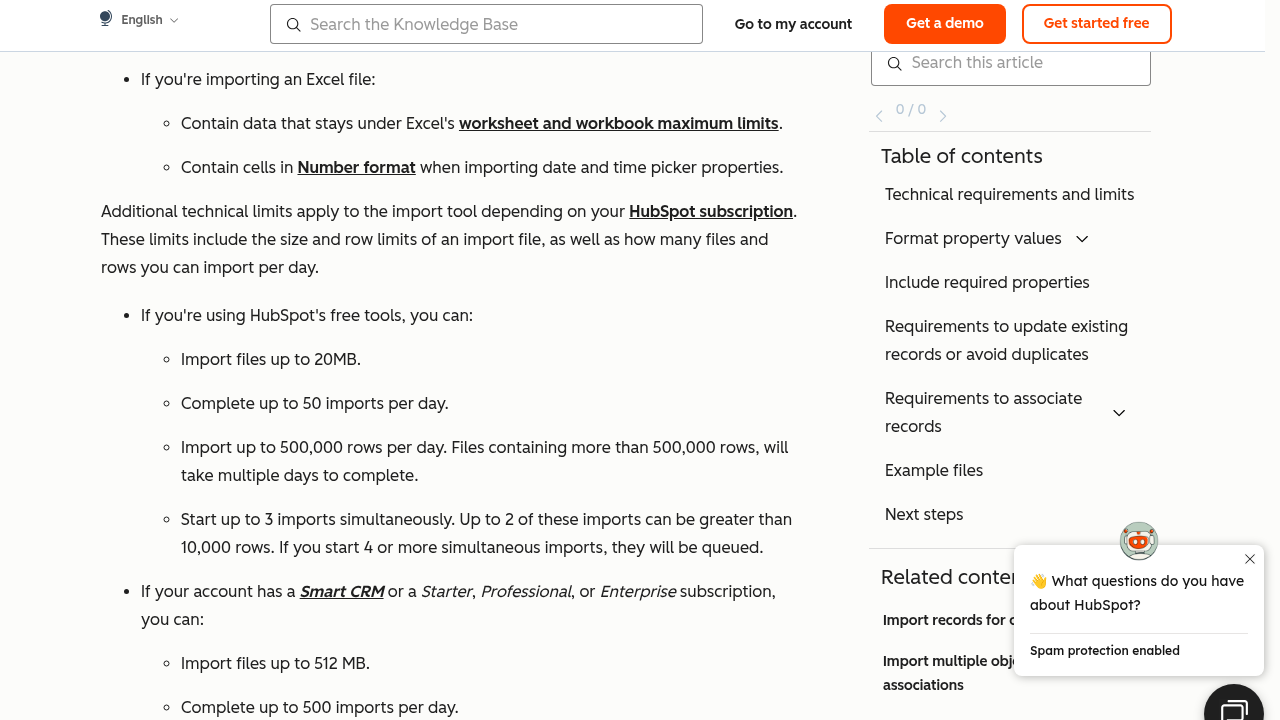
HubSpot knowledge base article on import file setup showing requirements for Excel imports and technical limits for free and paid subscriptions including file size limits of 20MB for free tools and 512MB for Smart CRM subscriptions and row import limits of 500000 rows per day for free and 10000000 rows per day for paid accounts.

TL;DR

CRM migrations fail when teams treat them as simple data imports rather than strategic projects, but proper planning including data audits, parallel system runs, and retention of historical access prevents pipeline loss and maintains team confidence in the new platform.

Key takeaways

  • Active pipeline must migrate with zero loss and zero ambiguity because salespeople will stop using a system where they cannot find their deals immediately.
  • Data audits before export should identify and eliminate duplicates, dead custom fields, unused custom objects, and redundant picklist values to avoid migrating garbage into the new system.
  • Attachments, email threads, and call logs are the most commonly lost data during CRM migrations and become unrecoverable once your subscription ends, so you must export them using APIs or bulk export tools before giving notice to the vendor.
  • Design the new system around how your team actually sells rather than replicating the old platform's field layout, because replacements that merely look similar to the old system will fail adoption.
  • Run both systems in parallel for a short, defined window with clear rules to allow salespeople to verify that their active deals and critical information migrated successfully.
  • Verify the migration using record counts and reports after cutover to confirm that pipeline and historical data arrived in the new system accurately and completely.
  • Keep the old CRM system on read-only access for at least one full reporting cycle after cutover rather than canceling immediately, allowing team members to reference historical information as they adjust to the new platform.

Most CRM migrations go wrong for one reason. Somebody exports a contact list, imports it into the new system, and calls it done. Then a salesperson asks where the notes from the 2022 renewal call went, and nobody has an answer. Pipeline stalls. Trust in the new system evaporates in about a week.

Leaving a CRM is a data project first and a software project second. If you treat it that way, you keep your history, your pipeline, and your team's confidence. If you don't, you spend the next year answering "can you check the old system?"

TL. DR: Inventory and audit your data while you still have full admin access. Export everything, including attachments and email threads, before you give notice. Design the new system around how your team actually sells, not around the old platform's field layout. Run both systems in parallel for a short, defined window. Verify record counts and reports after cutover. Keep the old system read-only for a while before you kill the contract.
Key takeaways

  • Active pipeline and historical records need different migration treatment. Pipeline must be perfect. History needs to be findable, not pretty.
  • Attachments, email threads, and call logs are the most commonly lost data and the hardest to recover after your subscription lapses.
  • Audit duplicates and dead fields before export, or you pay to carry junk into the new system.
  • A replacement that looks and works almost like the old one will fail adoption. Make the improvement obvious.
  • Do not cancel the old subscription on cutover day. Downgrade to read-only and keep it for one full reporting cycle.

Phase zero: separate what matters from what's just sitting there

Before anyone touches an export button, write down what you actually have. Not what the CRM says you have. What your team uses.

Six categories cover almost every CRM I've pulled data out of. Active pipeline, which is every open deal with a real close date. Historical records, meaning closed deals, old accounts, dead leads. Attachments, including proposals, signed contracts, and scanned documents. Email threads that got logged against records. Call logs and activity history. And automation logic, which is the rules, workflows, and assignment logic nobody wrote down.

Each of these needs a different plan. Active pipeline has to move over with zero loss and zero ambiguity, because a salesperson who can't find their deal stops using the system that day. Historical records need to be searchable and accurate, but they don't need every field carried forward. Attachments are usually the biggest technical headache. Automation logic is the one everyone forgets, and it's the one that causes the weirdest bugs three months later.

Go talk to your reps before you decide what's important. Ask them what they look at on a record. In my experience you'll find they use about eight fields out of the forty your CRM admin built, and one of those eight is a text field somebody repurposed for something it was never meant to hold.

Audit the data before you export it

Every CRM that's been live for more than three years is carrying garbage. Your job is to find it before you move it.

Start with duplicates. Pull a report of contacts with matching email addresses and accounts with similar names. You'll find the same company entered four ways, usually because three reps created it independently and nobody merged them. Decide the merge rules now, on paper, before the data is in motion. Which record wins? The one with the most recent activity, usually. Not the oldest.

Then look at field usage. Most CRMs will show you fill rates on custom fields if you dig, or you can export and count blanks in a spreadsheet. Any field under about ten percent filled is probably dead. Custom objects are worse. Someone built an object for "Partner Referrals" in 2021, loaded eleven records, and never touched it again. That's not data worth migrating. That's a decision someone abandoned.

Also check your picklist values, the dropdown menus. Deal stages in particular. If you have nine stages and eighty percent of open deals sit in three of them, your real sales process has three stages and the other six are decoration. That matters for the next phase.

The single most common data loss in a CRM migration is attachments. Standard CSV exports give you file names, not files. Getting the actual documents out usually requires the platform's API or a bulk export tool, and both stop working the day your subscription ends. Pull your attachments first, not last.

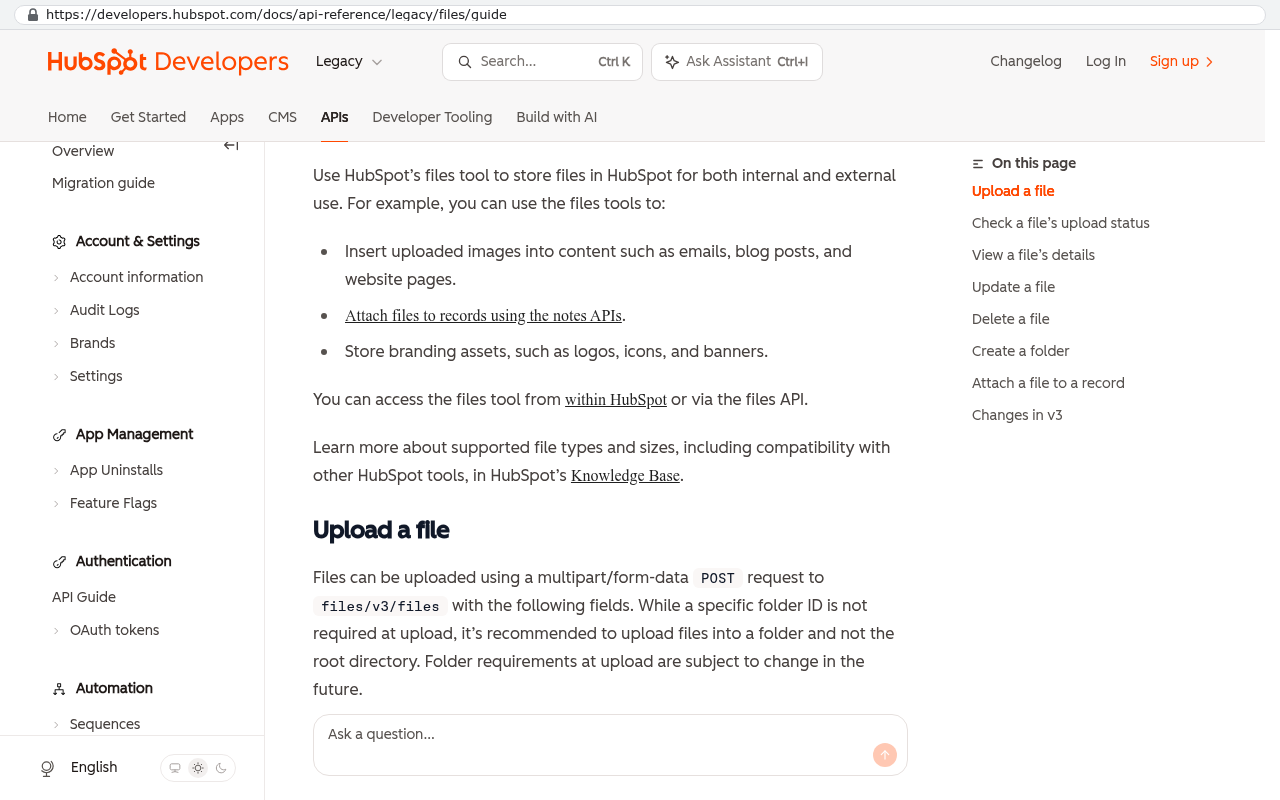
HubSpot Developers Files API guide showing multipart POST requests to upload files and API access methods for file management
HubSpot Developers documentation page showing how to use the Files API to upload and access files through API endpoints. Source: developers.hubspot.com/docs/api-reference/legacy/files/guide

Export while you still have full access

Do your full export before you tell the vendor anything. This isn't about being sneaky. It's about access.

Once you give notice, a few things tend to happen. Your account gets flagged for retention outreach. API rate limits that were never enforced suddenly matter. And if the renewal date passes while you're still pulling data, some platforms drop you to a read-only or locked state with export disabled. You are then negotiating for your own data, which is a bad position.

A complete export usually means five things. Every standard object as CSV files, which are plain spreadsheet files. Every custom object, separately. All attachments and files, pulled through the API with a script that maps each file to its parent record. Email and activity logs, which are often a separate export path. And screenshots or documentation of every workflow, automation rule, validation rule, and report you depend on.

That last one gets skipped constantly. Automation doesn't export. There's no file for "when a deal hits Proposal Sent, notify the sales manager and create a task due in three days." Someone has to sit down and write those rules out. Do it while the system is live and you can click through and check.

Store the exports somewhere you control. Your own cloud storage, your own server. Not a folder in the vendor's platform.

Design the new system around your sales process, not the old object model

Here's where custom builds earn their keep, and also where teams make their biggest mistake. They recreate the old CRM field for field.

Your old platform had Leads, Contacts, Accounts, and Opportunities because Salesforce decided that in 1999 and everyone copied it. That model works fine for some businesses. It's awkward for plenty of others. If you sell to homeowners, the separation between Contact and Account is friction with no payoff. If you sell through dealers, a single Account record can't hold the relationship properly.

Build the schema, meaning the structure of your data, around what a deal actually is in your business. A commercial HVAC company doesn't have opportunities. It has sites, buildings, equipment, and service agreements. A staffing firm has candidates, placements, and contract terms. When the structure matches the work, the fields shrink and the reports write themselves.

This is the real argument for owning the system. You pay a CRM subscription monthly, forever, and you still bend your process to fit its shape. A custom build costs money once, plus hosting and maintenance, and the shape is yours. If you're paying for forty seats at a mid-tier CRM and adding paid integrations on top, run the numbers over five years. The subscription total is often larger than the build, and at the end of five years you own nothing.

That arithmetic doesn't always favor a build. If you have eight users, a standard sales process, and no unusual integrations, an off-the-shelf CRM is the right answer and a custom one is overkill. Be honest with yourself about which situation you're in.

Run both systems in parallel, briefly and with rules

Parallel running keeps people safe. Run it too long and it kills the project.

The failure mode is predictable. Both systems stay live, reps keep using the old one because it's familiar, and dual entry becomes permanent. Now your data is split and neither system is trustworthy. I've seen teams sit in that state for a year.

Set the parallel window as a fixed period with a written rule. One good approach: the new system is the only place new deals get created, starting on day one. The old system stays live and read-only for lookups. No new records, no edits. Reps can go read the old notes, but all new activity happens in the new place.

Historical data can keep loading during this window. Active pipeline cannot. Move open deals in one clean batch, verify them with the rep who owns each one, and then close the door.

Pick your cutover date with the calendar in mind. Not the last week of the quarter. Not during your busiest season. Mid-month, mid-quarter, on a Tuesday, is boring and correct.

Two-way syncing between the old and new CRM during parallel run sounds helpful and almost never is. It doubles the number of things that can break, and conflict resolution between two systems with different field structures gets ugly fast. One-way, one-time, verified by a human is better.

Retraining: adoption fails when the change is too small

If the new system feels like a slightly different version of the old one, your team will resist it hard. Not because they're stubborn. Because you asked them to relearn something for no visible benefit.

Adoption goes well when the improvement hits them in the first five minutes. A quote that used to take twelve minutes now takes two. The mobile view actually works in a truck. The dashboard shows their commission without asking finance. That's the thing to lead training with, and it's the thing to build first.

Train by role, not by feature. A rep needs to know four workflows cold. A sales manager needs the pipeline view and the forecast. Don't put them in the same session and walk through every screen. Run short sessions on real data with real deals, and have someone available in the room for the first week.

Expect a productivity dip for a week or two. Plan for it instead of pretending it won't happen.

Verify after cutover, with numbers

The week after cutover is when you find out what broke. Check it deliberately.

Record counts first. Count accounts, contacts, deals, and activities in both systems and compare. They won't match exactly, because you merged duplicates and dropped dead records. That's fine, as long as you can explain the gap. If you're short 340 contacts and you merged 340 duplicates, good. If you're short 340 and you merged 60, go find the other 280.

Then reconcile reports. Run last quarter's revenue report in both systems. Run pipeline by stage. Run activity by rep. The numbers should match, and if they don't, the problem is usually a stage mapping or a date field that landed in the wrong place. Do this with your CFO or controller in the room, because they're the ones who'll challenge a number later.

Also check every integration. Email sync, calendar sync, accounting, marketing, phone system. Send a test record through each path and watch it land. Integrations fail quietly. Nobody notices for a month, and then you find a hole in the data.

Spot-check attachments by opening twenty random records and clicking the files. Not the file names. The actual files.

Limitations and honest caveats

Some things genuinely don't survive a migration well, and you should know which before you start.

Email threads are the hardest. If your old CRM logged emails as objects tied to contacts, you can export them, but the rendering rarely survives clean. Attachments inside those emails often don't come at all. Sometimes the right answer is to archive email history as a searchable PDF set and accept that it's a reference, not a live record.

Timestamps and audit trails are another loss. When you import a deal created in 2020, the new system records today as the creation date unless you explicitly preserve the original. Some platforms let you write to created-date fields on import. Many don't, and a custom build should be told to support it from day one.

Reports that depended on platform-specific features won't port. Forecast categories, lead scoring models, territory rules. Those are logic, not data, and they get rebuilt.

And there's a real cost to switching if your CRM is the hub for external collaboration. If clients or partners log into shared portals, that's a separate migration with its own communication plan. Don't discover that in week three.

What to do with the old system

Don't cancel on cutover day. That instinct is expensive to indulge.

Downgrade to the cheapest tier that keeps data readable, and hold it for at least one full reporting cycle after cutover. A quarter is reasonable. You will need it, usually for a dispute about a number or a contract someone can't find.

When you do terminate, do it properly. Pull one final full export. Confirm the vendor's data deletion policy in writing and get the deletion date. Check whether any other tool authenticates through the CRM, because killing it can break a downstream integration you forgot existed. Then store your archive in two places, one of them offline.

The archive is the point of the whole exercise. Twelve years of customer history in files you control, readable without a login to anyone else's platform, is worth the effort it took to pull it out.

FAQ

How long does a CRM migration take?

It depends far more on data quality than on the software. A clean system with two objects and no attachments moves quickly. Twelve years of records with duplicate accounts and thousands of documents takes real work. The audit phase usually takes longer than the import.

Should we migrate all of our history or just recent records?

Migrate everything you can, but you don't have to give it all the same treatment. Move the last two or three years as fully functional records with all fields. Older data can go in as a searchable archive with fewer fields. Nobody is editing a 2015 closed deal.

Can we do this without a developer?

Partly. Contacts, accounts, and deals can move with careful spreadsheet work and the import tools most platforms ship with. Attachments and email logs need someone who can write a script against an API, meaning a programmatic connection to the platform. That's the part where people get stuck.

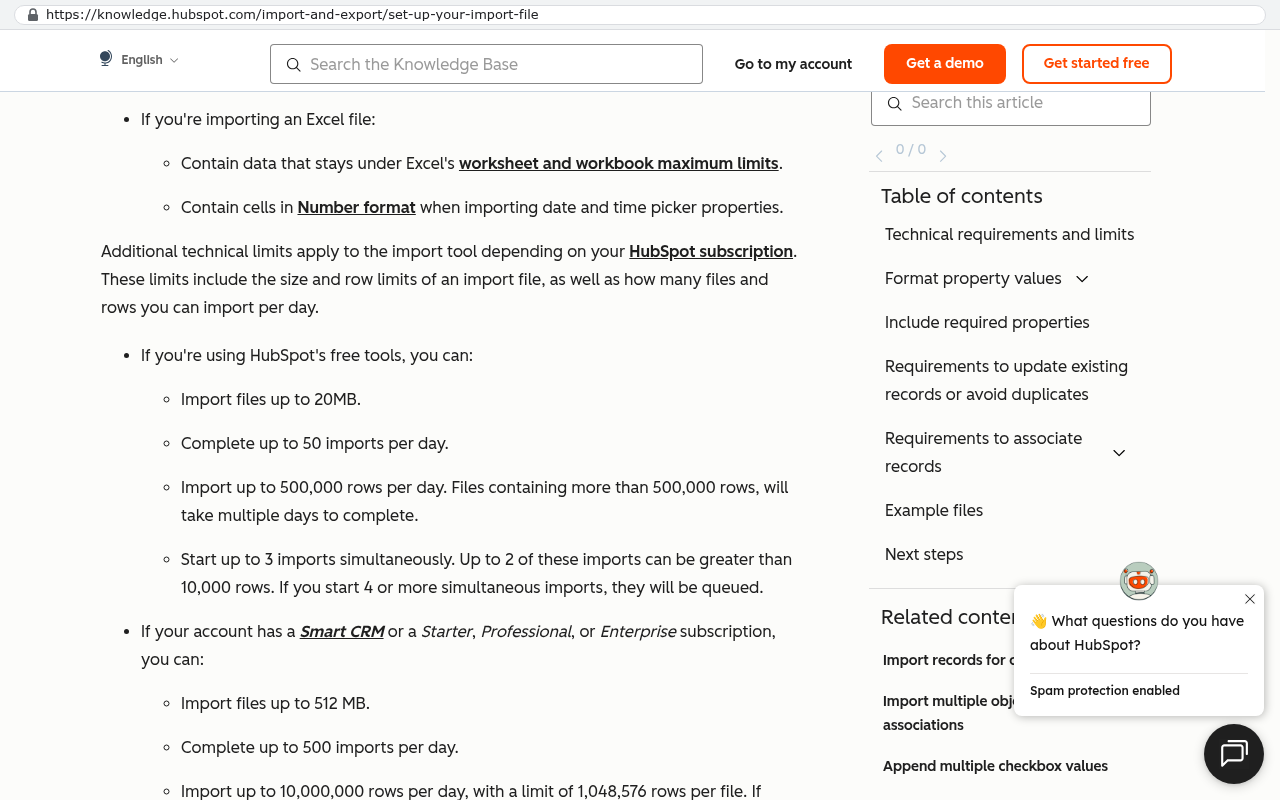
HubSpot knowledge base article on import file setup showing requirements for Excel imports and technical limits for free and paid subscriptions including file size limits of 20MB for free tools and 512MB for Smart CRM subscriptions and row import limits of 500000 rows per day for free and 10000000 rows per day for paid accounts.
HubSpot's knowledge base article on setting up import files shows technical requirements and limits for importing contacts and deals via CSV with file size and row limits for different subscription tiers. Source: knowledge.hubspot.com/import-and-export/set-up-your-import-file

What if the new system isn't ready by our renewal date?

Ask for a short month-to-month extension rather than a full year. Most vendors will do it, though sometimes at a higher monthly rate. Signing another annual term because the project slipped is how companies end up three years into a platform they decided to leave.

Is a custom CRM really cheaper than a subscription?

Sometimes, and the math depends on seat count and how long you'll run it. Add up your annual subscription, paid add-ons, and integration fees, then multiply by five. Compare that to a build plus hosting and maintenance over the same period. Above roughly twenty or thirty seats with unusual process requirements, ownership tends to win. Below that, it often doesn't.

Next steps

Start with the audit. Pull a field usage report and a duplicate report this week, before you make any platform decisions. What you find will tell you how big this project actually is, and it costs you nothing but an afternoon.

If you want a second set of eyes on the plan, or you're weighing whether a build makes sense against another renewal, book a free strategy session and we'll walk through your data with you.

Read this next: our guide to deciding between renewing a SaaS subscription and building a system you own.

Related articles

Questions

Frequently asked questions

What is the biggest mistake people make when migrating CRM systems?

Most CRM migrations fail because teams simply export a contact list and import it into the new system without planning. This causes critical data loss like notes from past calls and deal history to disappear. Salespeople can't find their information, pipeline stalls, and trust in the new system evaporates within a week. Treating migration as a data project first, not just a software project, is essential to keeping history, pipeline, and team confidence intact.

What data gets lost most often during CRM migrations?

Attachments, email threads, and call logs are the most commonly lost data and hardest to recover after your subscription ends. Standard CSV exports give you file names but not the actual files. Getting documents out usually requires the platform's API or bulk export tool, both of which stop working once your subscription lapses. Pull attachments first, not last, while you still have full access to the system.

Should we migrate all historical records or just recent ones?

Historical records need to be searchable and accurate, but they don't need every field carried forward. The key difference is that active pipeline must move with zero loss and zero ambiguity, while historical records like closed deals and old accounts can be less detailed. What matters is that your team can find and reference past information when needed, not that every field is perfect.

When should you export data from your old CRM?

Do your full export before you tell the vendor you're leaving. Once you give notice, your account gets flagged for retention, API rate limits suddenly matter, and access may be restricted if renewal dates pass. Some platforms drop to read-only or lock exports after renewal, forcing you to negotiate for your own data. Export everything while you still have full admin access and the system is fully operational.

What should we do with the old CRM system after switching?

Do not cancel the old subscription on cutover day. Instead, downgrade it to read-only and keep it available for one full reporting cycle. This gives your team time to verify everything moved correctly and provides a safety net if questions arise about historical data. After that period, you can safely end the contract.

How do you decide what data actually matters in your CRM?

Talk to your sales reps before deciding what's important. Ask what they look at on a record. Most teams use about eight fields out of forty the CRM admin built. Audit duplicates, check field usage rates, and look at picklist values and deal stages. Any field under ten percent filled is probably dead weight. This inventory of what your team actually uses guides what to migrate versus what to leave behind.

Why does running both CRM systems in parallel matter?

Running both systems for a short, defined window with clear rules lets you verify everything transferred correctly before fully committing to the new system. After cutover, you can confirm record counts and reports match between systems. This parallel period catches problems while you still have access to the old system, rather than discovering data loss after you've already switched everyone over.

Read this next

What happens to your data when you stop paying a SaaS vendor

Cancel a SaaS subscription and your data doesn't vanish, it gets locked behind a login. Here's what an export really gives you, what never comes out, and when owning the system is cheaper.

If this is your situation

Talk it through on a call

Thirty minutes over video with the person who would run the build. You talk, we ask questions, and you leave with a plain read on whether custom software makes sense for you. If the answer is that your current tool is fine and badly configured, you will hear that.

Book a strategy call

Who wrote this

David Verneuille

David Verneuille

Founder, Black Badger Software Solutions

David Verneuille founded Black Badger after 18 years as a project manager and years implementing Smartsheet, monday.com, Wrike and Zoho for clients. He now builds custom systems that clients own outright, which is why the writing here is specific about where each platform fits and where it stops fitting.

About Black Badger

Drafted with AI assistance, then checked, edited, and approved by a person before publishing. The facts, opinions, and recommendations are ours.

Related

More on general

More reading

Read this next

Want this looked at properly?

An article can only go so far without knowing your systems. Book a strategy call, walk us through what is breaking, and you will get a straight read on whether custom software is the right answer.