Migrating off a CRM without losing your pipeline history
/ 12 min read
TL;DR
Migrating off a CRM requires careful planning to preserve pipeline history, with the biggest challenges being activity history, attachments, and record relationships that don't export cleanly through standard tools.
Key takeaways
Activity history and attachments need API-level scripted exports rather than built-in export buttons because standard CSV exports either skip them entirely or flatten them into unusable text formats.
Record relationships stored as internal ID numbers must be mapped and carried across during migration, or notes and activities become orphaned data disconnected from the correct deals and accounts.
Run both CRM systems in parallel for at least one full sales cycle with the old system in read-only mode to prevent two conflicting versions of the truth while teams transition.
Sales adoption fails primarily on reporting parity, so if managers cannot rebuild their weekly forecasts and reports on day one of the new system, adoption will suffer regardless of training quality.
Schedule old CRM subscription cancellation based on your read-only retention period (at least one quarter post-launch) rather than your go-live date to maintain access for lookups and reference.
Use the migration window to clean house by deleting dead records and old closed-lost deals that nobody references, as this is the only time stakeholders will agree to purge noise from the system.
Email threads synced from mailbox plugins typically remain in the original email system rather than migrating, so confirm this limitation early and plan accordingly rather than discovering it on launch day.
The pipeline history is the part people forget until it's gone. Contacts move fine. Companies move fine. Then a rep goes looking for the note that explains why a $400,000 deal stalled in 2023, and it isn't there. That's the moment a CRM migration turns from a project into a crisis.
Moving off a CRM is mostly a data problem, and data problems are solvable. But they're solvable in a specific order, with a specific amount of paranoia. Here's how to do it without torching eight years of institutional memory.
TL. DR
Export everything twice, audit it before you load it, and run both systems side by side for a full sales cycle. Attachments, activity history, and record relationships are the three things that break during a CRM migration, and none of them come out cleanly with a standard CSV export. Keep read-only access to the old system for at least a quarter after you go live, and time your contract cancellation around that, not around your go-live date.
Key takeaways
Activity history and attachments need a scripted export through the platform's API, because the built-in export buttons either skip them or flatten them into unusable text.
Record relationships (which note belongs to which deal, which deal belongs to which account) are stored as ID numbers. If you don't carry those IDs across, you get orphaned data.
A migration is the only time anyone will agree to delete dead records, so use the window to clean house.
Run the old CRM in read-only mode during the parallel period. Two writable systems means two versions of the truth.
Sales adoption fails on reporting parity more than on training. If a manager can't rebuild their weekly forecast on day one, the new system gets blamed.
Budget for the fact that some things do not migrate. Email threads synced from a mailbox plugin usually stay behind.
Map what actually needs to move
Start by listing the objects, which is just a fancy word for record types. Most CRMs have the same core set. Contacts, accounts or companies, opportunities or deals, activities (calls, emails, notes, tasks), attachments, and whatever custom fields your team bolted on over the years.
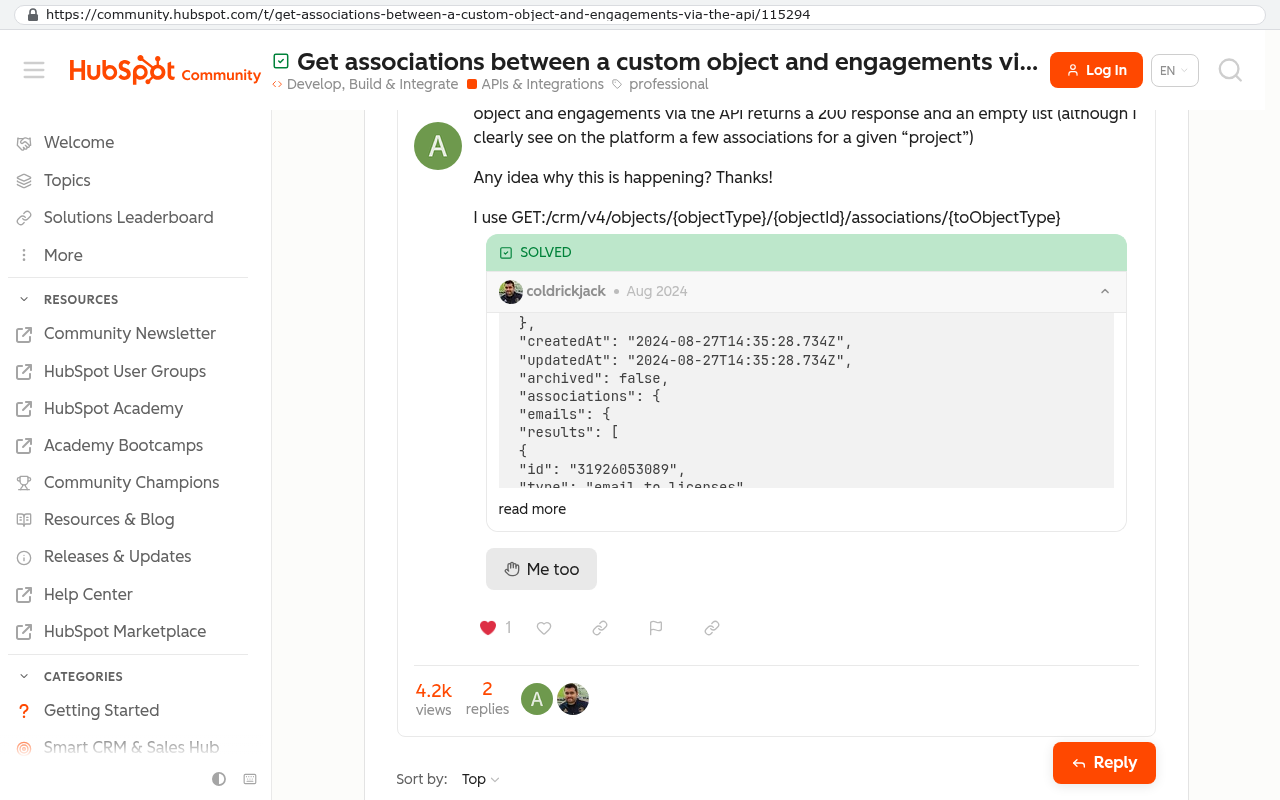
The objects are easy. The relationships between them are where migrations die. Every note in your CRM is attached to a record by an internal ID number, not by a name. When you export a note to a spreadsheet, you often get the note text and a date, and a column of ID numbers that mean nothing outside the old system.
HubSpot Community page displays a solved API discussion showing a response object with numeric IDs like 31926053089 demonstrating how associations use internal ID numbers not names. Source: community.hubspot.com/t/get-associations-between-a-custom-object-and-engagements-via-the-api/115294
So your export plan has to carry the old ID for every record, and your import plan has to keep a lookup table mapping old IDs to new ones. Do that and the notes land on the right deals. Skip it and you get 60,000 notes floating in space.
Also decide what you're deliberately leaving behind. Closed-lost deals from 2016 with no notes attached are not history. They're noise. Nobody has opened them and nobody will.
Test your migration with 50 records before you attempt 50,000. Load a handful of accounts with their full chain of contacts, deals, notes, and files. If the chain holds, scale up. If it doesn't, you've wasted an afternoon instead of a weekend.
Where CRM exports quietly fail you
Every platform has an export button, and every export button lies a little. Here's what actually goes wrong.
Attachments are the worst offender. Most CRMs will export a spreadsheet row that contains a link to a file, not the file itself. Click the link after you cancel the subscription and you get a login screen for an account that no longer exists. Pulling the real files means hitting the platform's API, which is the programmatic back door that developers use, and downloading each one. On a mid-sized CRM that can be tens of thousands of files.
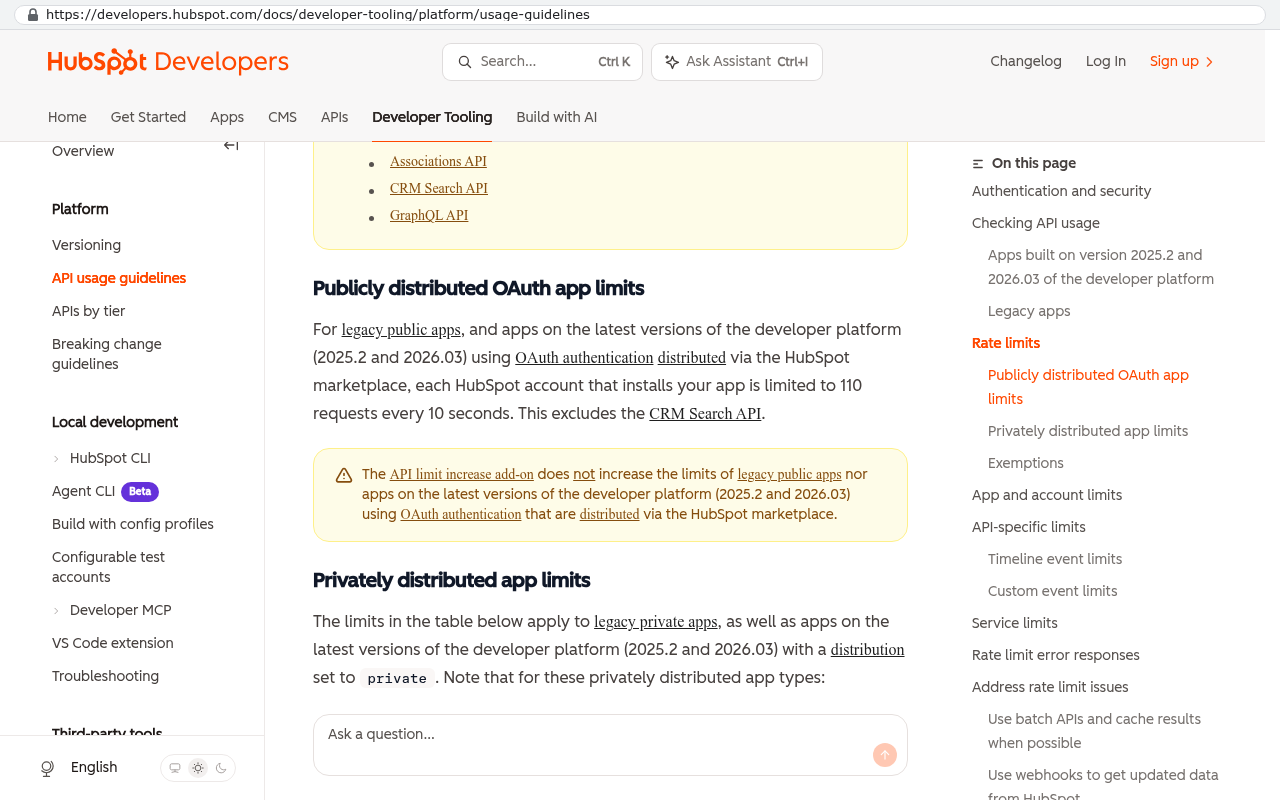
API rate limits are the second problem. Platforms cap how many requests you can make per hour or per day. Salesforce, HubSpot, Zoho and Dynamics all do this in different ways. A large attachment pull can take days of running a script that pauses, waits, and resumes. That's fine, but you need to know it before you promise a go-live date.
HubSpot Developers API usage guidelines page shows publicly distributed OAuth app limits of 110 requests per 10 seconds Source: developers.hubspot.com/docs/developer-tooling/platform/usage-guidelines
Then there are the fields that look fine and aren't. Multi-select picklists export as a single text cell with semicolon-separated values. Rich text notes export with HTML markup baked into the cell. Formula fields export their calculated result, not the formula, which is usually what you want but occasionally not. Currency fields lose their currency code. Time zones shift on date fields more often than anyone admits.
Email history is the one that surprises people. If your reps use a mailbox sync plugin, the emails often live in the plugin's own storage, not in the CRM's exportable data. Check this early. The answer is sometimes "those threads stay in Outlook," and that's survivable as long as you know in advance.
The data audit nobody wants and everybody needs
Pull the export into a spreadsheet and look at it honestly. You will find duplicates. You will find three versions of your biggest customer with slightly different spellings. You'll find custom fields created in 2019 for a campaign that ran once, now sitting empty on 40,000 records.
This is the only moment your sales team will tolerate a cleanup. Once the new system is live, nobody wants to touch data hygiene again. So do it now.
A practical audit covers a few things. Count how many records have a value in each field, and delete any field where the fill rate is under a couple of percent. Find duplicate accounts by domain name rather than company name, because "Acme Inc" and "Acme, Inc." are the same company and a machine won't know that. Identify contacts with no email, no phone, and no activity in three years, and decide as a group whether they move.
Have the sales manager sign off on the deletions in writing. Not because anyone's being difficult, but because six months later somebody will ask where the 2018 leads went and you want a document, not a memory.
Keep a full raw export of the old CRM, untouched, in cold storage before you clean anything. Cheap cloud storage costs almost nothing for a few gigabytes of CSV files. It's the only real undo button you'll have.
Running both systems at once without losing the plot
The parallel run is where most of the risk gets managed. The rule is simple. One system takes writes, the other goes read-only.
Set a cutover date. From that morning, all new activity goes into the new system. The old CRM stays accessible so people can look things up, but you strip edit permissions from everyone. If two systems accept edits at once, you end up with a deal that's at 60 percent in one place and closed-won in the other, and no way to know which is right.
Run the read-only period for at least one full sales cycle. If your average deal takes four months to close, three weeks of parallel access isn't enough. Reps will go back to the old system to find context on deals that were already in flight during the switch.
During this window, keep a shared log of anything anyone couldn't find. That log becomes your punch list. Usually it's a handful of fixable gaps, like a custom field that didn't map or attachments on one object type that got missed.
Getting the sales team to actually use it
Adoption fails for reasons that have nothing to do with software quality. The two big ones are field names and reporting.
Name fields the way your reps talk. If everyone in the building says "job number," don't call it "Project Reference ID" because that's what the old system called it. Migration is your free chance to fix a decade of bad labels. Take it.
Reporting parity matters more than features. On day one, every report a manager runs on Monday morning needs to exist and produce the same numbers as the old system did the Friday before. If the forecast total differs by even a little, trust evaporates and people go back to spreadsheets. Build those reports during the parallel run and reconcile them against the old CRM until they match exactly.
Train in short sessions on real records, not demo data. A rep learns faster looking at their own pipeline than at fictional deals for a fake company. And pick two or three people who learn it first and become the ones everyone asks. That works better than a help desk.
What commonly breaks, and the order to fix it
Certain integrations fail almost every time, and knowing the list in advance makes it a checklist instead of a fire.
Email sync. Every rep has to reconnect their mailbox individually, and some will need IT help with permissions. Do this before go-live, not on the day.
Calendar integration. Meetings booked in the old system won't carry their CRM link. Existing calendar invites survive, but the connection to the deal record doesn't.
Quoting and proposals. If quotes were generated from CRM data, the templates need rebuilding against new field names. Rebuild them first, because a rep who can't send a quote is blocked from selling.
Web form routing. Forms on your website post to the old CRM's endpoint. Re-point them and test with a real submission before you switch.
Marketing automation handoff. Lists, scores, and enrollment status often don't map cleanly between platforms.
Sequence it by what blocks revenue. Quoting first, then email sync, then web forms, then reporting, then the nice-to-haves. Nobody loses a deal because dashboard colors are wrong.
Limitations and honest caveats
Not every migration is worth doing, and not everything survives the trip. A few realities worth saying plainly.
Some data legitimately cannot move. Platform-specific features like proprietary lead scores, engagement timelines, or AI-generated summaries exist only inside that vendor's system. You can export the number. You can't export the logic that produced it.
Migrations cost real effort even when they go well. Between the export scripting, the audit, the parallel run, and the training, you're looking at meaningful time from your operations lead and your sales manager. That's a genuine cost, and it's worth weighing against staying put.
The arithmetic is usually what settles it. Take 45 seats at $165 per user per month. That's about $89,000 a year, forever, rising at renewal. If your team uses maybe a third of what the platform does, and the pain is mostly that you can't change anything without paying for a new tier, a system you own outright stops that meter. If instead your team uses the platform hard and the price feels fair, don't migrate for the sake of it.
A custom CRM isn't the right answer for a five-person team that needs contact management and nothing else. Off-the-shelf wins at that size. The math changes when seat counts climb, workflows get specific to your industry, and you're paying for a platform to get in your way.
Pre-migration checklist
Work through this before anyone touches a production import.
Take a complete raw export of every object, including a separate attachment pull, and store it somewhere outside both systems.
Confirm your contract end date and the exact date your data access is revoked. Those are often different, and vendors are not obligated to remind you.
Negotiate a short read-only extension if you can. Many vendors will grant a month or two at reduced cost rather than lose the renewal conversation entirely.
Document every integration currently pointed at the CRM, including the obscure one finance built three years ago.
Get written sign-off on what's being deleted and what's being archived.
Build and reconcile the core reports before cutover, not after.
Schedule the cutover for the start of a month, never the end of a quarter.
Do these seven things and the migration becomes boring. Boring is the goal.
FAQ
How long does a CRM migration usually take?
It depends far more on data volume and integration count than on the new platform. A clean CRM with 20,000 records and two integrations is a different job from one with 400,000 records, twelve custom objects, and a quoting engine. Scope the export first, then estimate.
Can we keep our old CRM data without keeping the subscription?
Yes, if you export properly before access ends. The data is yours. What you lose is the interface for browsing it. Many teams load the raw archive into a simple searchable database so old records stay findable without paying for seats.
What happens to emails synced into the old CRM?
Usually they stay in the mailbox they came from, which means Outlook or Gmail still has them. The CRM's copy of the thread often can't be exported in a usable format. Check this specifically with your platform before you assume either way.
Should we clean the data before or after we move it?
Before. Loading garbage into a new system and promising to fix it later never happens. The cleanup is easier in a spreadsheet than in a live CRM anyway.
Is it safe to cancel the old subscription on go-live day?
No. Keep it for at least a full sales cycle in read-only mode. The moment you cancel, you lose the ability to check anything you missed, and you will have missed something.
Next steps
If you're staring at a renewal notice and wondering whether this is the year you stop paying per seat, run the export audit first. It tells you how hard the move actually is, and it costs you nothing but a few hours. From there the decision usually makes itself.
When you want a second set of eyes on the plan, book a free strategy session and we'll walk through your data and your integration list with you.
Read this next: our breakdown of what it really costs to own your software instead of renting it.
How to scope a replacement for software you've outgrown
Questions
Frequently asked questions
What are the three things that most commonly break during a CRM migration?
Attachments, activity history, and record relationships are the three things that break during CRM migration. Attachments often export as links that become inaccessible after cancellation. Activity history and attachments need API-based exports rather than standard CSV exports. Record relationships stored as ID numbers get lost if those IDs aren't carried across, leaving data orphaned.
Why do I need to run both CRM systems at the same time?
Running both systems side by side for a full sales cycle prevents losing data and lets your team adapt gradually. Two systems should never both be writable, as this creates two versions of the truth. Keep the old system in read-only mode during this parallel period. This allows your team to verify the migration worked before fully committing to the new system.
How should I handle data cleanup before migrating to a new CRM?
Pull your export into a spreadsheet and audit it honestly before migration. Delete fields with fill rates under a couple percent, find duplicate accounts by domain name, and identify inactive contacts with no email or phone. This is the only time your sales team will tolerate cleanup. Get written sign-off from your sales manager on deletions, and keep a full raw export of the old CRM in cold storage before cleaning anything.
What happens to emails synced into my old CRM after migration?
Email threads synced from a mailbox plugin usually stay behind and don't migrate to the new system. Check this early in your planning process. The emails remain in your mailbox service like Outlook, which is survivable as long as you know in advance and plan accordingly.
Can I cancel my old CRM subscription on my go-live date?
No. Keep read-only access to the old system for at least a quarter after you go live. Time your contract cancellation around that period, not around your go-live date. This gives you time to verify the migration worked and ensures you can still access old system data if issues arise after going live.
What's the best way to handle record IDs during migration?
Your export plan must carry the old ID for every record, and your import plan needs a lookup table mapping old IDs to new ones. Notes in your CRM are attached to records by internal ID numbers, not by name. Without this mapping, notes float in space unattached to deals. Getting this right is critical to maintaining your pipeline history.
How should I test my CRM migration before going live with all my data?
Test your migration with 50 records before attempting 50,000. Load a handful of accounts with their full chain of contacts, deals, notes, and files. If the chain holds, scale up. If it breaks, you've wasted an afternoon instead of a weekend. This prevents data disasters at scale.
Cancel a SaaS subscription and your data doesn't vanish, it gets locked behind a login. Here's what an export really gives you, what never comes out, and when owning the system is cheaper.
If this is your situation
Talk it through on a call
Thirty minutes over video with the person who would run the build. You talk, we ask questions, and you leave with a plain read on whether custom software makes sense for you. If the answer is that your current tool is fine and badly configured, you will hear that.
David Verneuille founded Black Badger after 18 years as a project manager and years implementing Smartsheet, monday.com, Wrike and Zoho for clients. He now builds custom systems that clients own outright, which is why the writing here is specific about where each platform fits and where it stops fitting.
Shadow spreadsheets, view-only seats you pay full price for, and automations nobody understands. Here are seven signs your project management platform is now shaping your business instead of supporting it.
The per-seat price on your renewal quote is the smallest number on the invoice. Here's a worksheet for finding the rest, plus the break-even math that tells you whether to renew or build.
When browsing the internet, you may have noticed that some websites have "https" in their URLs instead of "http". But have you ever wondered what that extra "s" means?
Enterprise Performance Management (EPM) is a management approach used by organizations to analyze their business performance and make informed decisions based on data.
Want this looked at properly?
An article can only go so far without knowing your systems. Book a strategy call, walk us through what is breaking, and you will get a straight read on whether custom software is the right answer.